> ## Documentation Index
> Fetch the complete documentation index at: https://docs.textyess.com/llms.txt
> Use this file to discover all available pages before exploring further.
# Flows
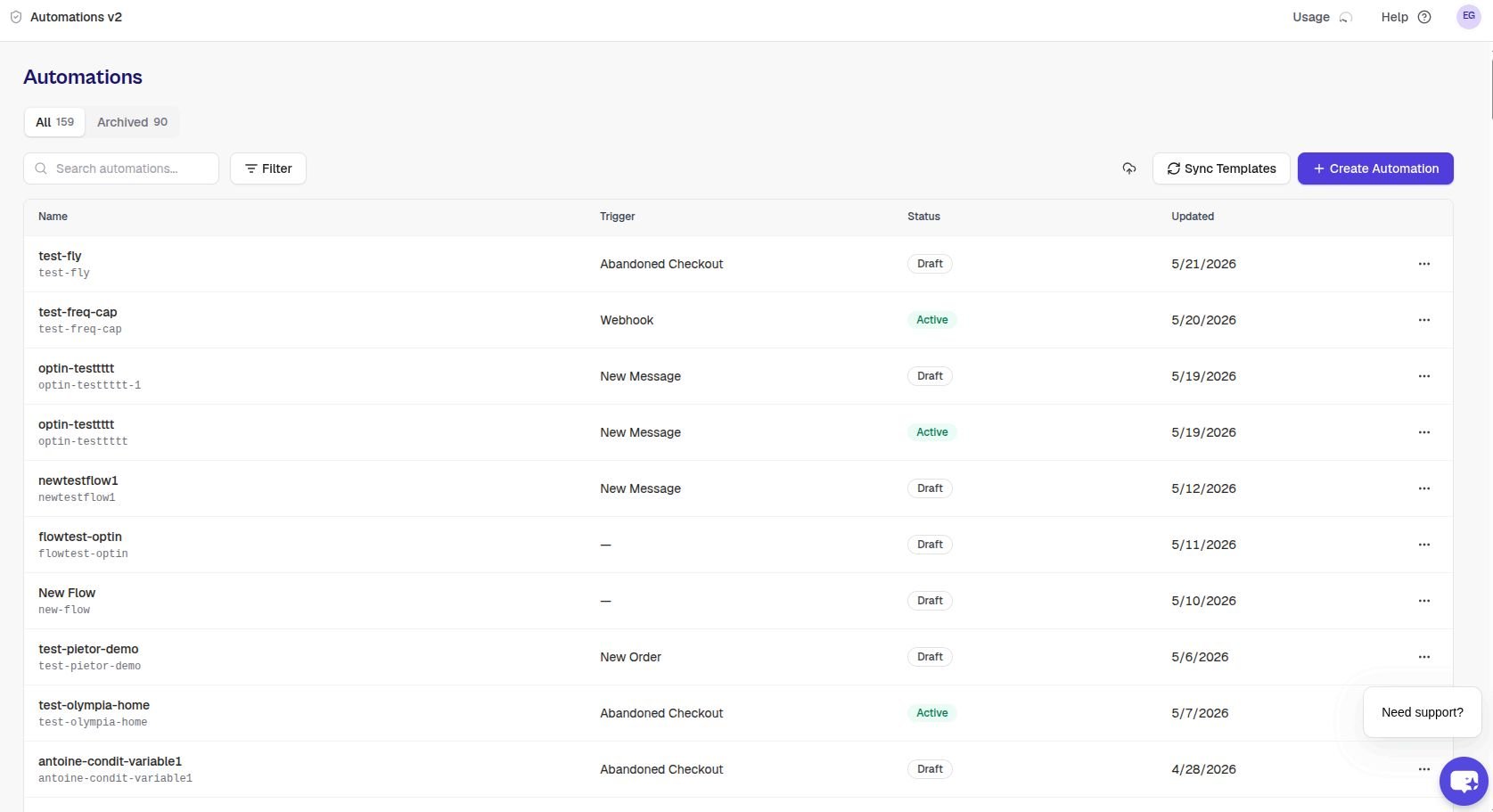
> Build automated WhatsApp journeys that react to what your customers do — order, checkout, browse, reply — in minutes, on a visual canvas.
A **Flow** is an automation: when something happens in your store or on WhatsApp, TextYess runs a series of steps for that customer. No code, no scheduling tasks — drag, connect, publish.
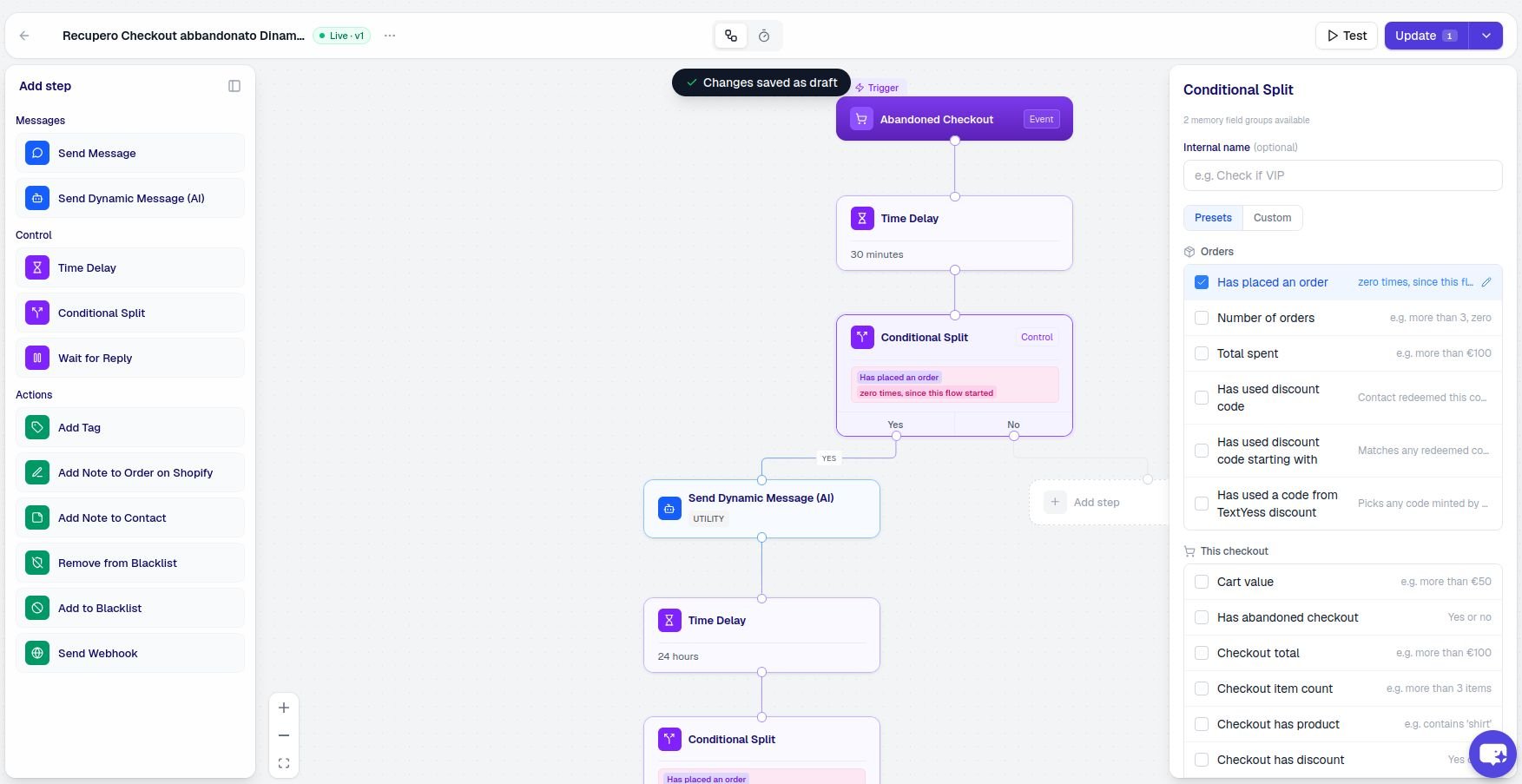 Send a reminder 30 minutes after a cart is abandoned, then a 10% discount 24 hours later if there's still no order.
The moment a contact opts in, send a welcome message, wait for a button click, and tag them by interest.
For contacts with no orders in 90 days, send a personalised re‑engagement message with a code.
Acknowledge new orders, notify on fulfilment, and route replies back to your support inbox.
## Anatomy of a flow
Every flow has the same shape:
```
Trigger → Steps → End
```
Something happens — a new order, an abandoned checkout, a customer types a keyword, your own webhook hits us. The trigger decides **who** the flow runs for and **what data** it starts with.
Each step does one thing: send a message, wait, branch on a condition, look up history, call a webhook. Steps share data through a per-execution memory, so a later step can reference what an earlier step saw.
A flow ends when it reaches a terminal node — either because every path completed, a wait timed out, or a branch led to a dead end. Each execution is recorded so you can audit and analyse it later.
## Concepts at a glance
The 9 events that can start a flow — orders, checkouts, product views, inbound messages, and custom webhooks.
The building blocks: send a message, delay, branch, wait for a reply, call a webhook, tag a contact.
Branch a flow on customer attributes, order data, history, or button replies — using presets or custom expressions.
Pre-approved WhatsApp templates, AI-generated dynamic messages, buttons, media, and dynamic copy.
How TextYess protects your contacts from over‑messaging — and how marketing and utility messages differ.
Draft → test → submit template → publish → activate. Plus how to reverse each one safely.
## Lifecycle of a flow
A flow moves through five states as you build, ship, and operate it.
```
draft ─→ pending_approval ─→ active ⇄ inactive ─→ archived
```
The state you live in while you're building. Editing the canvas is unlimited and triggers are ignored. Saving a draft never sends a real message — it just stores the latest version.
When you publish a flow that uses a WhatsApp template you've never sent before, Meta needs to approve the template. The flow stays in `pending_approval` until Meta replies — usually minutes, sometimes hours. We poll automatically.
The flow is live. Each matching trigger starts a new execution for the customer it fires for. This is the only state in which a real customer can receive a message from the flow.
Triggers are ignored. Already-running executions keep going to completion. Flip back to active whenever you're ready.
Soft-deleted. Hidden from the list but still visible in analytics so historical attribution is preserved.
## What happens during an execution
When a trigger matches an active flow, TextYess creates an **execution** — a single, durable run of that flow for that customer.
* The execution is durable: if a step takes 24 hours (a delay) or 7 days (a wait for reply), it survives restarts, deploys, and even network blips.
* Every step result is recorded — what data it read, what it wrote, whether it succeeded or failed, when it ran.
* You can open an execution in the dashboard to see exactly what happened, step by step. This is the first thing to check if something looks wrong.
Executions are independent. Two customers triggering the same flow at the same time get two parallel executions; they never share data.
## Before you build your first flow
You've connected WhatsApp via 360dialog — see [WhatsApp Integration](/whatsapp-integration).
Your store is connected — see [Shopify](/widget-installation-shopify) or [WooCommerce](/woocommerce-onboarding).
You have at least one approved WhatsApp template you can use, or you're comfortable submitting one when you publish.
When you're ready, head to **Flows** in the sidebar and click **New flow**. The next page, [Triggers](/flows/triggers), explains what to pick first.
Send a reminder 30 minutes after a cart is abandoned, then a 10% discount 24 hours later if there's still no order.
The moment a contact opts in, send a welcome message, wait for a button click, and tag them by interest.
For contacts with no orders in 90 days, send a personalised re‑engagement message with a code.
Acknowledge new orders, notify on fulfilment, and route replies back to your support inbox.
## Anatomy of a flow
Every flow has the same shape:
```
Trigger → Steps → End
```
Something happens — a new order, an abandoned checkout, a customer types a keyword, your own webhook hits us. The trigger decides **who** the flow runs for and **what data** it starts with.
Each step does one thing: send a message, wait, branch on a condition, look up history, call a webhook. Steps share data through a per-execution memory, so a later step can reference what an earlier step saw.
A flow ends when it reaches a terminal node — either because every path completed, a wait timed out, or a branch led to a dead end. Each execution is recorded so you can audit and analyse it later.
## Concepts at a glance
The 9 events that can start a flow — orders, checkouts, product views, inbound messages, and custom webhooks.
The building blocks: send a message, delay, branch, wait for a reply, call a webhook, tag a contact.
Branch a flow on customer attributes, order data, history, or button replies — using presets or custom expressions.
Pre-approved WhatsApp templates, AI-generated dynamic messages, buttons, media, and dynamic copy.
How TextYess protects your contacts from over‑messaging — and how marketing and utility messages differ.
Draft → test → submit template → publish → activate. Plus how to reverse each one safely.
## Lifecycle of a flow
A flow moves through five states as you build, ship, and operate it.
```
draft ─→ pending_approval ─→ active ⇄ inactive ─→ archived
```
The state you live in while you're building. Editing the canvas is unlimited and triggers are ignored. Saving a draft never sends a real message — it just stores the latest version.
When you publish a flow that uses a WhatsApp template you've never sent before, Meta needs to approve the template. The flow stays in `pending_approval` until Meta replies — usually minutes, sometimes hours. We poll automatically.
The flow is live. Each matching trigger starts a new execution for the customer it fires for. This is the only state in which a real customer can receive a message from the flow.
Triggers are ignored. Already-running executions keep going to completion. Flip back to active whenever you're ready.
Soft-deleted. Hidden from the list but still visible in analytics so historical attribution is preserved.
## What happens during an execution
When a trigger matches an active flow, TextYess creates an **execution** — a single, durable run of that flow for that customer.
* The execution is durable: if a step takes 24 hours (a delay) or 7 days (a wait for reply), it survives restarts, deploys, and even network blips.
* Every step result is recorded — what data it read, what it wrote, whether it succeeded or failed, when it ran.
* You can open an execution in the dashboard to see exactly what happened, step by step. This is the first thing to check if something looks wrong.
Executions are independent. Two customers triggering the same flow at the same time get two parallel executions; they never share data.
## Before you build your first flow
You've connected WhatsApp via 360dialog — see [WhatsApp Integration](/whatsapp-integration).
Your store is connected — see [Shopify](/widget-installation-shopify) or [WooCommerce](/woocommerce-onboarding).
You have at least one approved WhatsApp template you can use, or you're comfortable submitting one when you publish.
When you're ready, head to **Flows** in the sidebar and click **New flow**. The next page, [Triggers](/flows/triggers), explains what to pick first.