> ## Documentation Index
> Fetch the complete documentation index at: https://docs.textyess.com/llms.txt
> Use this file to discover all available pages before exploring further.
# Messages & Templates
> How WhatsApp templates work, when to use AI-generated messages instead, and everything you can attach to a send — buttons, media, discounts, and copy codes.
Every outbound message on WhatsApp goes out on an **approved template**. There are no exceptions — Meta (the company behind WhatsApp) requires that businesses use templates for any message sent to a contact who hasn't messaged them in the last 24 hours.
TextYess gives you two ways to send:
A traditional, fixed-body template. The structure is approved once by Meta; variables fill in customer-specific details at send time. Best when the wording is the same for everyone.
Uses a pre-approved **dynamic template**; the body is generated at runtime by AI from a prompt. Best when you want each customer to receive personalised copy without managing dozens of templates.
## Template anatomy
A WhatsApp template has up to four parts. You configure each one in the editor; Meta approves the structure (not the values).
 A short title, an image, video, or a document. Headers can include up to one variable (e.g. `Order #{{1}}`).
Your message text. May contain variables (`{{1}}`, `{{2}}`, …). Maximum 1024 characters.
A short greyed-out line under the body (e.g. *"Reply STOP to unsubscribe"*). No variables.
Up to three quick-reply or call-to-action buttons. Quick replies turn the Send Message step into a [waiting step](/flows/steps) automatically.
### Categories
Every template carries a **category** that determines (a) how Meta reviews it and (b) how strictly TextYess rate-limits it.
| Category | When to use | Frequency cap behaviour |
| ------------- | ------------------------------------------------------------------------------------------------------------------------------------------------ | ---------------------------------------------- |
| **UTILITY** | Order confirmations, shipping notifications, account updates, transactional acknowledgements. Anything triggered by an explicit customer action. | Quiet hours apply; **no count limit** |
| **MARKETING** | Promotional content, win-back, sale announcements, abandoned-cart discounts. | Full frequency cap — count **and** quiet hours |
When you create a new Send Message step, the category defaults to **UTILITY**. Change it to MARKETING only when the message is promotional — getting this wrong inflates your marketing send count or has Meta reject the template.
See [Frequency cap](/flows/frequency-cap) for the exact rules.
## Variables
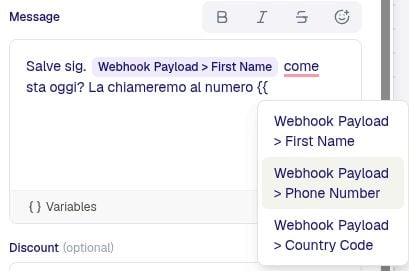
Every text field in a template (header, body, button label) can contain variables. The editor exposes a variable picker; you don't need to remember dot-paths.
| Where it comes from | Example value path |
| ---------------------- | ------------------------------------------------------------------------ |
| Trigger memory | `order.customer.firstName`, `checkout.total_price`, `payload.cart_value` |
| Previous step output | `.messageId`, `.reply.text`, `.generatedText` |
| Contact profile | `contact.name`, `contact.phone`, `contact.email` |
| Pre-rendered summaries | `summary.order`, `summary.checkout`, `summary.product` |
If a referenced variable is missing at send time, the template falls back to an empty string for that position rather than failing the send. This means a template that references `{{1}} = order.gift_message` will still send when the order has no gift message — that variable will simply render empty.
## Quick-reply buttons
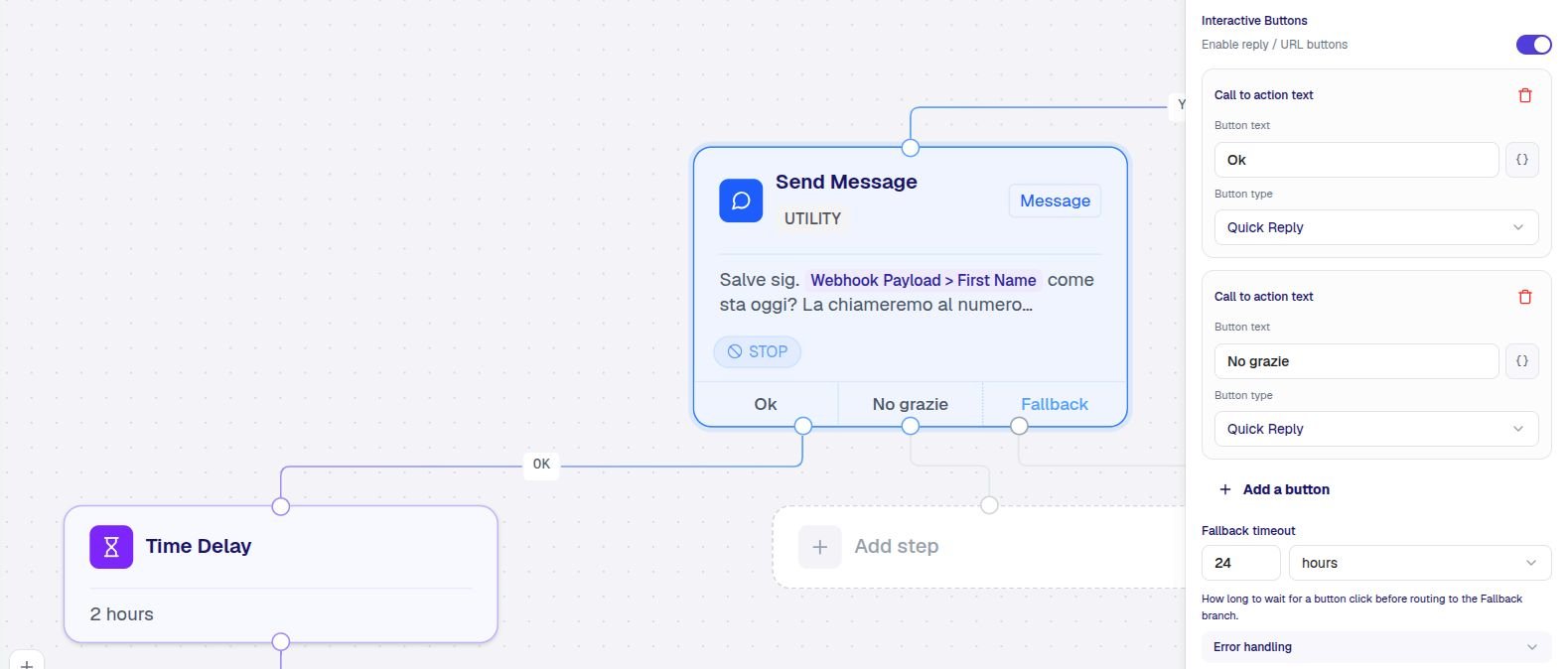
Quick-reply buttons turn a Send Message into an interactive checkpoint. The contact taps a button and the flow branches.
```
[Send: "Want our spring catalogue?"]
├── "Yes!" → [Send: "Here it is!" + Add Tag: catalogue-yes]
├── "No" → [Add Tag: catalogue-no]
└── timeout → [Add Tag: catalogue-no-reply]
```
When you add buttons to a Send Message:
* Each button label becomes an output handle on the canvas.
* An implicit `timeout` branch appears so you can decide what happens if the contact doesn't reply.
* The **Wait for Reply** step (see [Steps](/flows/steps)) is **not** needed (and not allowed) after a Send Message with buttons — the wait is built in.
A button's `buttonId` (lowercase, hyphen-separated label) is written to `memory[stepId].reply.buttonId`. Use it in expressions if you need to distinguish between buttons that look similar to a human ("Yes please" / "Yes, but later").
A short title, an image, video, or a document. Headers can include up to one variable (e.g. `Order #{{1}}`).
Your message text. May contain variables (`{{1}}`, `{{2}}`, …). Maximum 1024 characters.
A short greyed-out line under the body (e.g. *"Reply STOP to unsubscribe"*). No variables.
Up to three quick-reply or call-to-action buttons. Quick replies turn the Send Message step into a [waiting step](/flows/steps) automatically.
### Categories
Every template carries a **category** that determines (a) how Meta reviews it and (b) how strictly TextYess rate-limits it.
| Category | When to use | Frequency cap behaviour |
| ------------- | ------------------------------------------------------------------------------------------------------------------------------------------------ | ---------------------------------------------- |
| **UTILITY** | Order confirmations, shipping notifications, account updates, transactional acknowledgements. Anything triggered by an explicit customer action. | Quiet hours apply; **no count limit** |
| **MARKETING** | Promotional content, win-back, sale announcements, abandoned-cart discounts. | Full frequency cap — count **and** quiet hours |
When you create a new Send Message step, the category defaults to **UTILITY**. Change it to MARKETING only when the message is promotional — getting this wrong inflates your marketing send count or has Meta reject the template.
See [Frequency cap](/flows/frequency-cap) for the exact rules.
## Variables
Every text field in a template (header, body, button label) can contain variables. The editor exposes a variable picker; you don't need to remember dot-paths.
| Where it comes from | Example value path |
| ---------------------- | ------------------------------------------------------------------------ |
| Trigger memory | `order.customer.firstName`, `checkout.total_price`, `payload.cart_value` |
| Previous step output | `.messageId`, `.reply.text`, `.generatedText` |
| Contact profile | `contact.name`, `contact.phone`, `contact.email` |
| Pre-rendered summaries | `summary.order`, `summary.checkout`, `summary.product` |
If a referenced variable is missing at send time, the template falls back to an empty string for that position rather than failing the send. This means a template that references `{{1}} = order.gift_message` will still send when the order has no gift message — that variable will simply render empty.
## Quick-reply buttons
Quick-reply buttons turn a Send Message into an interactive checkpoint. The contact taps a button and the flow branches.
```
[Send: "Want our spring catalogue?"]
├── "Yes!" → [Send: "Here it is!" + Add Tag: catalogue-yes]
├── "No" → [Add Tag: catalogue-no]
└── timeout → [Add Tag: catalogue-no-reply]
```
When you add buttons to a Send Message:
* Each button label becomes an output handle on the canvas.
* An implicit `timeout` branch appears so you can decide what happens if the contact doesn't reply.
* The **Wait for Reply** step (see [Steps](/flows/steps)) is **not** needed (and not allowed) after a Send Message with buttons — the wait is built in.
A button's `buttonId` (lowercase, hyphen-separated label) is written to `memory[stepId].reply.buttonId`. Use it in expressions if you need to distinguish between buttons that look similar to a human ("Yes please" / "Yes, but later").
 ## Call-to-action buttons
Two other button types are static — they don't wait for a reply, they just give the contact something to tap.
| Type | What it does |
| -------------------- | ------------------------------------------------------------------------------------------------------------------------------- |
| **URL button** | Opens a URL. At most one variable in the URL — useful for cart recovery links, order tracking pages, dynamic discount landings. |
| **Phone button** | Opens the contact's phone dialler with your number pre-filled. |
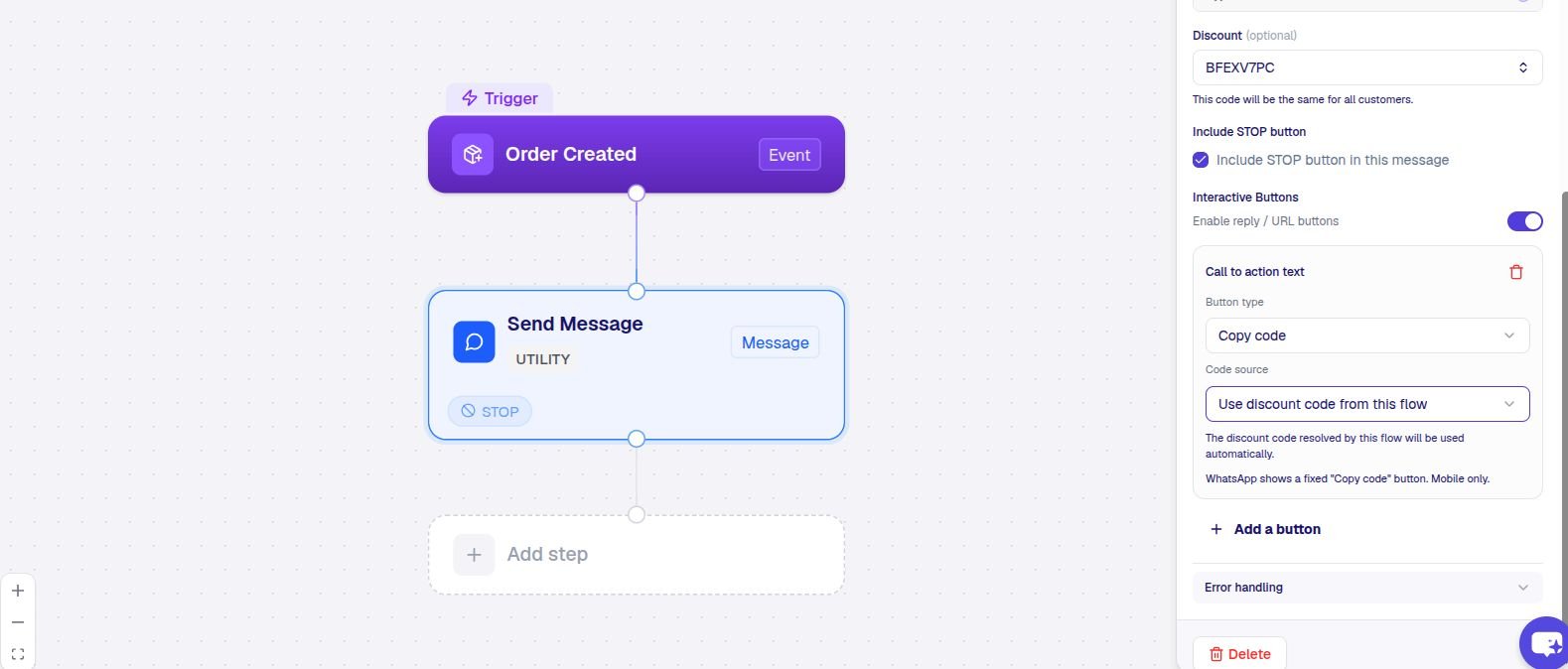
| **Copy code button** | Copies a string to the clipboard. Configurable to either a static value or a discount code reserved at runtime. |
Copy-code buttons are how you ship a unique discount code per send:
```
Header: "Welcome, {{1}}!"
Body: "Use this code at checkout for 10% off your first order."
Button: [Copy code: ABC123] ← reserved per send from a TextYess discount campaign
```
When you choose **Reserve from a discount campaign** in the Send Message editor, TextYess picks a fresh code from your campaign every time the step runs. The code is also available in memory as `.discount` if you want to reference it in later steps (e.g. logging it to your CRM).
## Call-to-action buttons
Two other button types are static — they don't wait for a reply, they just give the contact something to tap.
| Type | What it does |
| -------------------- | ------------------------------------------------------------------------------------------------------------------------------- |
| **URL button** | Opens a URL. At most one variable in the URL — useful for cart recovery links, order tracking pages, dynamic discount landings. |
| **Phone button** | Opens the contact's phone dialler with your number pre-filled. |
| **Copy code button** | Copies a string to the clipboard. Configurable to either a static value or a discount code reserved at runtime. |
Copy-code buttons are how you ship a unique discount code per send:
```
Header: "Welcome, {{1}}!"
Body: "Use this code at checkout for 10% off your first order."
Button: [Copy code: ABC123] ← reserved per send from a TextYess discount campaign
```
When you choose **Reserve from a discount campaign** in the Send Message editor, TextYess picks a fresh code from your campaign every time the step runs. The code is also available in memory as `.discount` if you want to reference it in later steps (e.g. logging it to your CRM).
 ## Media headers
Send Message and Send Dynamic Message both support a media header — an image, video, or document.
JPG or PNG. Max 5 MB. Hosted by TextYess once you upload it, or a public URL you provide.
MP4. Max 16 MB. WhatsApp downsamples on delivery — keep videos short.
PDF. Max 100 MB. Useful for invoices, return shipping labels, manuals.
The URL can be a variable too — for example, a per-order PDF receipt link from your store.
## Send Dynamic Message (AI)
The AI variant generates the message body at runtime instead of using a fixed template body. You write a **prompt** describing what the AI should say; TextYess feeds it the customer's context (trigger memory, profile, conversation history) and generates the body.
**When to use it:**
* You want the wording to vary per customer (style, language, references to past purchases) without managing dozens of templates.
* You want the AI to incorporate live data — order totals, viewed products, the customer's name — into natural-sounding copy.
* You want the assistant's voice to stay consistent with the rest of the customer's conversation.
**When to use a static Send Message instead:**
* Legal / regulated copy that must be word-for-word identical.
* Highest-volume marketing sends — fixed templates are cheaper and faster.
### Configuring the prompt
A good prompt is concrete about goal, tone, and required content. The AI receives the contact's name, the trigger data, and (optionally) recent messages as context.
```
Goal: invite the customer back to complete their abandoned checkout.
Tone: warm, conversational, casual — the customer is on a first-name basis with the brand.
Must include:
- The customer's first name (greet them).
- The product they were buying (use `summary.checkout`).
- A 10% discount code (use the reserved code button).
- A return-to-cart link in the URL button.
Hard limit: 60 words. No exclamation marks. No emoji.
```
### Custom rules
Custom rules let you constrain the AI without rewriting the whole prompt. Use them for compliance ("never claim a product is in stock"), tone ("never use the word *amazing*"), or formatting ("always end with the contact's first name").
### Memory written
| Field | Value |
| ------------------------ | ------------------------------------------------------------------------- |
| `.messageId` | The WhatsApp message id once Meta accepts the send |
| `.generatedText` | The exact body the AI produced — log this somewhere if compliance matters |
## Best practices
Don't try to make a single template do confirmation, cross-sell, and review-request. Split them; the analytics and frequency cap both reason about templates individually.
If you're not running a marketing campaign, your message is UTILITY. The default in the editor is correct — leave it.
Hand-typing `order.customer.firstName` is how typos and missing values sneak in. Use the picker; it shows what's actually available for your trigger.
Toggle the **Stop button** option on marketing sends. Contacts who tap it are auto-tagged and removed from future marketing — keeping your unsubscribe rate low (and Meta happy).
Next: [Frequency cap](/flows/frequency-cap) — the rules that keep marketing messages from over-sending.
## Media headers
Send Message and Send Dynamic Message both support a media header — an image, video, or document.
JPG or PNG. Max 5 MB. Hosted by TextYess once you upload it, or a public URL you provide.
MP4. Max 16 MB. WhatsApp downsamples on delivery — keep videos short.
PDF. Max 100 MB. Useful for invoices, return shipping labels, manuals.
The URL can be a variable too — for example, a per-order PDF receipt link from your store.
## Send Dynamic Message (AI)
The AI variant generates the message body at runtime instead of using a fixed template body. You write a **prompt** describing what the AI should say; TextYess feeds it the customer's context (trigger memory, profile, conversation history) and generates the body.
**When to use it:**
* You want the wording to vary per customer (style, language, references to past purchases) without managing dozens of templates.
* You want the AI to incorporate live data — order totals, viewed products, the customer's name — into natural-sounding copy.
* You want the assistant's voice to stay consistent with the rest of the customer's conversation.
**When to use a static Send Message instead:**
* Legal / regulated copy that must be word-for-word identical.
* Highest-volume marketing sends — fixed templates are cheaper and faster.
### Configuring the prompt
A good prompt is concrete about goal, tone, and required content. The AI receives the contact's name, the trigger data, and (optionally) recent messages as context.
```
Goal: invite the customer back to complete their abandoned checkout.
Tone: warm, conversational, casual — the customer is on a first-name basis with the brand.
Must include:
- The customer's first name (greet them).
- The product they were buying (use `summary.checkout`).
- A 10% discount code (use the reserved code button).
- A return-to-cart link in the URL button.
Hard limit: 60 words. No exclamation marks. No emoji.
```
### Custom rules
Custom rules let you constrain the AI without rewriting the whole prompt. Use them for compliance ("never claim a product is in stock"), tone ("never use the word *amazing*"), or formatting ("always end with the contact's first name").
### Memory written
| Field | Value |
| ------------------------ | ------------------------------------------------------------------------- |
| `.messageId` | The WhatsApp message id once Meta accepts the send |
| `.generatedText` | The exact body the AI produced — log this somewhere if compliance matters |
## Best practices
Don't try to make a single template do confirmation, cross-sell, and review-request. Split them; the analytics and frequency cap both reason about templates individually.
If you're not running a marketing campaign, your message is UTILITY. The default in the editor is correct — leave it.
Hand-typing `order.customer.firstName` is how typos and missing values sneak in. Use the picker; it shows what's actually available for your trigger.
Toggle the **Stop button** option on marketing sends. Contacts who tap it are auto-tagged and removed from future marketing — keeping your unsubscribe rate low (and Meta happy).
Next: [Frequency cap](/flows/frequency-cap) — the rules that keep marketing messages from over-sending.