> ## Documentation Index
> Fetch the complete documentation index at: https://docs.textyess.com/llms.txt
> Use this file to discover all available pages before exploring further.
# Publishing & testing
> Take a flow from a draft on the canvas to a live automation — safely. Covers test mode, template submission, the publish step, activation, and how to roll back.
A flow has to go through four steps before a real customer can receive a message from it:
```
Draft ─→ Test ─→ Submit templates ─→ Publish ─→ Active
```
Each step is reversible (you can go back to draft, deactivate, or archive). Real customer messages **only** go out once a flow is `active`.
## Save your draft
The "Save" button on the canvas snapshots the current state of the flow as the **draft definition** for that flow. Drafts:
* Don't fire triggers — no real customer is affected.
* Validate the structure of the flow when you save (disconnected branches, invalid expressions, unreachable steps are caught here).
* Compile to an executable representation behind the scenes, so the test runner has something to execute.
You can save as often as you like. Each save updates the same draft — there's only ever **one draft per flow**.
If you see a red save error, hover the highlighted node — the error message tells you which configuration is missing or invalid.
## Test mode
Test mode runs the flow end-to-end **on yourself** (or any phone number you specify), using mock customer data, without touching frequency caps or sending to the real audience.
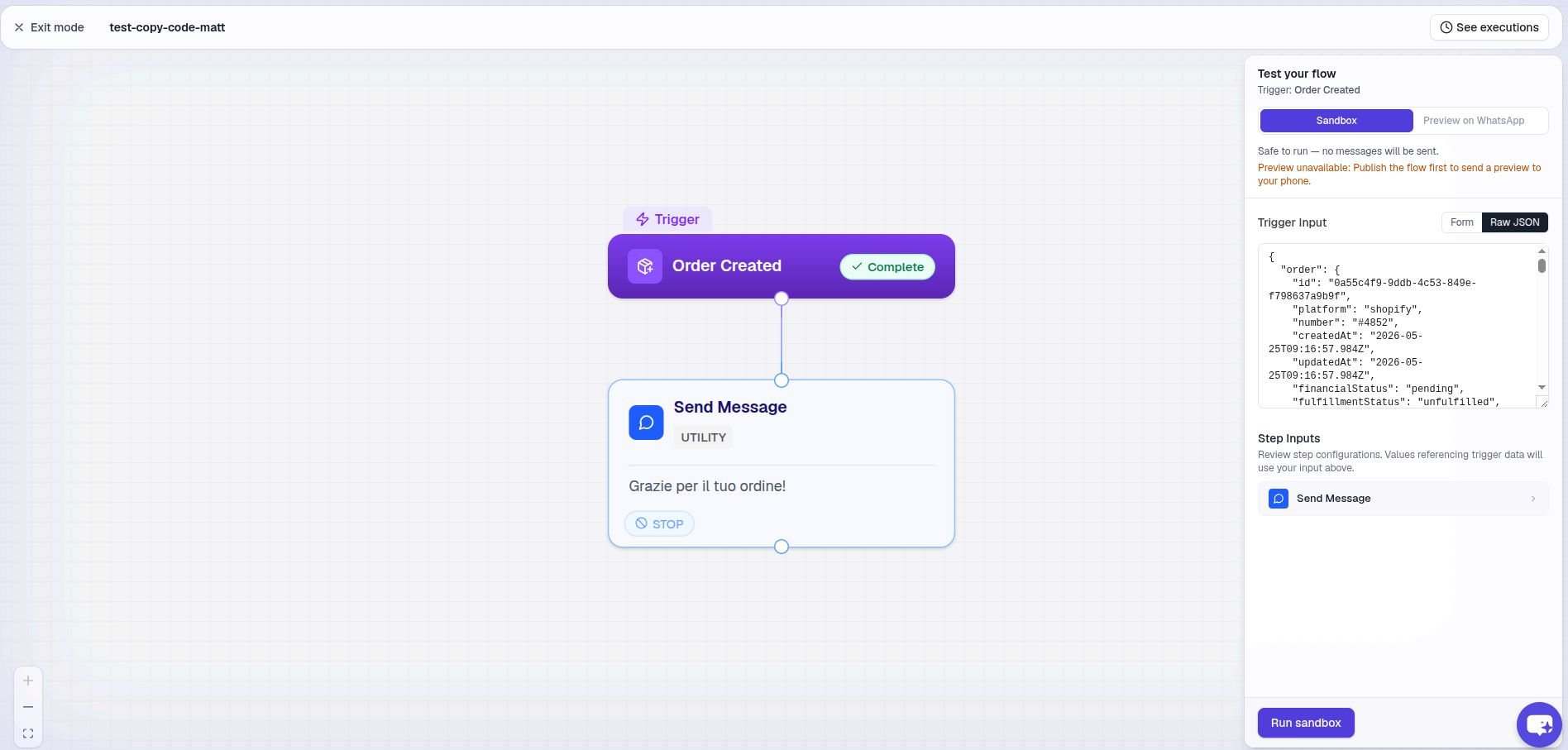 Click the **Test** button in the editor header. The panel lets you pick the trigger payload to simulate (for example, a sample order or a sample message).
Provide a phone number you control. This is where every Send Message in the flow will land.
TextYess starts a test execution. You can watch it run step-by-step in the panel: which branch fired, what variables were resolved, what each Send Message did.
### What test mode skips and adjusts
* **Time delays are capped to \~5 seconds.** A 24-hour delay completes in \~5 seconds so you don't have to wait.
* **Real customer side effects are skipped.** No tag is applied to a real contact, no real order note is written, no third-party webhook is called.
* **Frequency cap is bypassed.** You can re-run a test as many times as you need.
* **Real templates are still sent to your test phone** so you can verify formatting, media, and buttons.
Use test mode aggressively. A flow that branches on button replies and conditional splits has many paths — testing each one before publish is the difference between an automation you can trust and one you can't.
## Submit templates
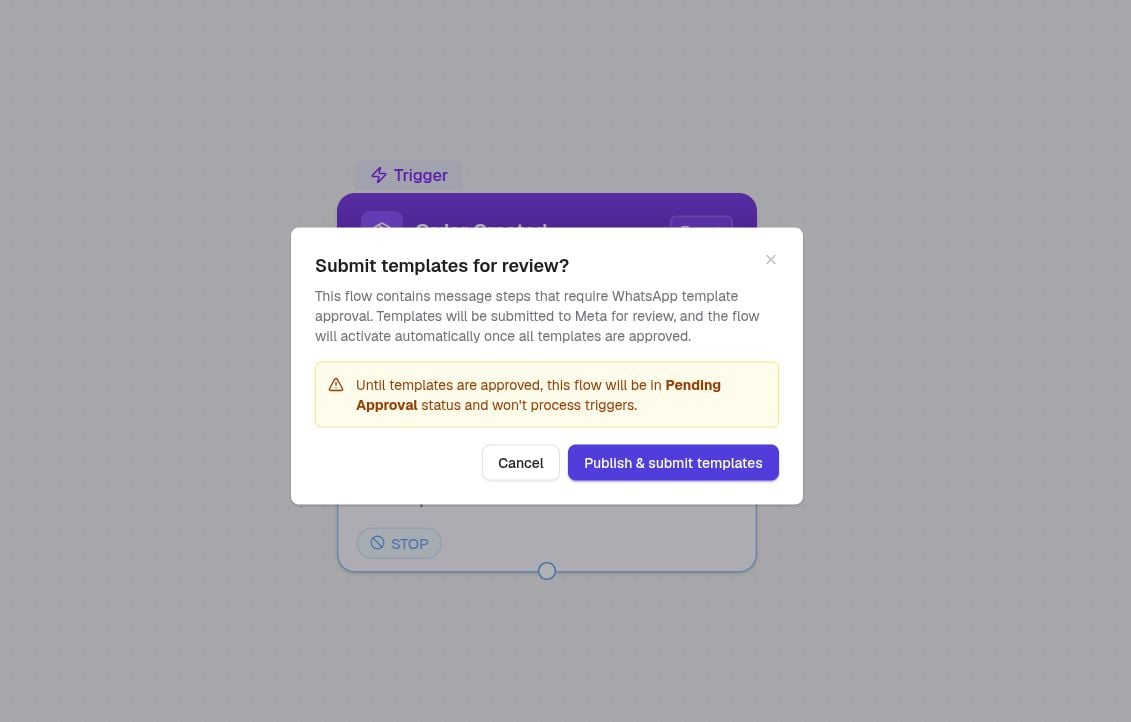
If your flow uses a template that hasn't been approved by Meta yet, publishing automatically submits it for review.
What this looks like:
* Click **Publish**.
* For each new or modified template, TextYess uploads it to Meta via 360dialog.
* The flow moves to status **pending\_approval**.
* TextYess polls Meta in the background. You'll see the status update as soon as a verdict is in.
**Typical review times:**
* Most templates are approved within minutes.
* Templates with media headers (images, videos, documents) sometimes take a few hours.
* Templates with promotional content or unusual phrasing can be rejected. If that happens, you'll see the rejection reason in the editor.
Click the **Test** button in the editor header. The panel lets you pick the trigger payload to simulate (for example, a sample order or a sample message).
Provide a phone number you control. This is where every Send Message in the flow will land.
TextYess starts a test execution. You can watch it run step-by-step in the panel: which branch fired, what variables were resolved, what each Send Message did.
### What test mode skips and adjusts
* **Time delays are capped to \~5 seconds.** A 24-hour delay completes in \~5 seconds so you don't have to wait.
* **Real customer side effects are skipped.** No tag is applied to a real contact, no real order note is written, no third-party webhook is called.
* **Frequency cap is bypassed.** You can re-run a test as many times as you need.
* **Real templates are still sent to your test phone** so you can verify formatting, media, and buttons.
Use test mode aggressively. A flow that branches on button replies and conditional splits has many paths — testing each one before publish is the difference between an automation you can trust and one you can't.
## Submit templates
If your flow uses a template that hasn't been approved by Meta yet, publishing automatically submits it for review.
What this looks like:
* Click **Publish**.
* For each new or modified template, TextYess uploads it to Meta via 360dialog.
* The flow moves to status **pending\_approval**.
* TextYess polls Meta in the background. You'll see the status update as soon as a verdict is in.
**Typical review times:**
* Most templates are approved within minutes.
* Templates with media headers (images, videos, documents) sometimes take a few hours.
* Templates with promotional content or unusual phrasing can be rejected. If that happens, you'll see the rejection reason in the editor.
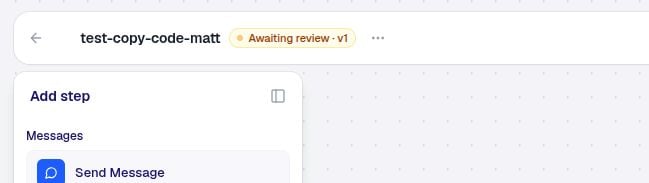 Meta can also **downgrade** a UTILITY template to MARKETING on approval — for example if your copy reads promotional. TextYess will honour Meta's decision and apply the marketing frequency cap to that template's future sends. You can update the copy and resubmit, or accept the downgrade.
### What if a template is rejected?
The flow stays in `pending_approval` for the offending template until you:
* Edit the rejected template (change wording, remove media, etc.) and republish, or
* Replace it with an already-approved template.
The rest of the flow's templates remain approved — you only re-submit the ones that changed.
## Publish
When **Publish** succeeds and all templates are approved, the flow's published version is sealed and the flow moves to status **active**. From this moment on, matching triggers will start real executions for real customers.
Meta can also **downgrade** a UTILITY template to MARKETING on approval — for example if your copy reads promotional. TextYess will honour Meta's decision and apply the marketing frequency cap to that template's future sends. You can update the copy and resubmit, or accept the downgrade.
### What if a template is rejected?
The flow stays in `pending_approval` for the offending template until you:
* Edit the rejected template (change wording, remove media, etc.) and republish, or
* Replace it with an already-approved template.
The rest of the flow's templates remain approved — you only re-submit the ones that changed.
## Publish
When **Publish** succeeds and all templates are approved, the flow's published version is sealed and the flow moves to status **active**. From this moment on, matching triggers will start real executions for real customers.
 A published version is **immutable** — you can't edit it. If you need to change a published flow, you edit the draft and publish again. Each publish creates a new version; the previous one is kept for execution history.
Webhook URLs and webhook secrets are generated when a flow with a **Webhook (Generic)** trigger is published for the first time. Open the trigger node after publish to copy them.
## Activate / deactivate / archive
Once a flow is published you can pause and resume it without re-publishing.
Triggers are ignored. In-flight executions keep running to completion. Flip back to active any time.
Triggers are matched again. New executions start as soon as a matching event arrives.
Soft-delete. Hidden from the flow list. Analytics still has the data so attribution stays correct.
The transitions:
```
draft → pending_approval → active ⇄ inactive → archived
```
A flow can move from `active` or `inactive` back to `draft` if you click **Edit** — at which point you're working on a new draft that supersedes the published version once you publish again.
## How to roll back
You have three rollback options, in order of severity:
Pauses the flow. Triggers stop matching. Use when you spot a problem and want to stop new executions immediately while you investigate. Reversible.
Open the flow's version history (in the editor). Each successful publish is a version. Pick a previous version and publish it again — it doesn't need to go through template approval again because those templates are already approved.
Soft-delete. Use when you're sure you'll never run the flow again. Analytics for past executions is preserved.
## Pre-publish checklist
You've tested every branch — including the timeout and failure paths.
Each Send Message has the correct category (UTILITY for transactional, MARKETING for promotional).
Marketing sends have a Stop button enabled.
The trigger's customer-resolution will succeed (phone number is available in the trigger data).
You've confirmed the frequency cap and quiet hours match your customers' timezone.
Webhook flows have a secret configured and your origin system sends it on every request.
You've watched the test run reach a terminal node on every path you expect customers to take.
When the checklist passes, hit **Publish** with confidence.
Back to the [Flows overview](/flows/introduction).
A published version is **immutable** — you can't edit it. If you need to change a published flow, you edit the draft and publish again. Each publish creates a new version; the previous one is kept for execution history.
Webhook URLs and webhook secrets are generated when a flow with a **Webhook (Generic)** trigger is published for the first time. Open the trigger node after publish to copy them.
## Activate / deactivate / archive
Once a flow is published you can pause and resume it without re-publishing.
Triggers are ignored. In-flight executions keep running to completion. Flip back to active any time.
Triggers are matched again. New executions start as soon as a matching event arrives.
Soft-delete. Hidden from the flow list. Analytics still has the data so attribution stays correct.
The transitions:
```
draft → pending_approval → active ⇄ inactive → archived
```
A flow can move from `active` or `inactive` back to `draft` if you click **Edit** — at which point you're working on a new draft that supersedes the published version once you publish again.
## How to roll back
You have three rollback options, in order of severity:
Pauses the flow. Triggers stop matching. Use when you spot a problem and want to stop new executions immediately while you investigate. Reversible.
Open the flow's version history (in the editor). Each successful publish is a version. Pick a previous version and publish it again — it doesn't need to go through template approval again because those templates are already approved.
Soft-delete. Use when you're sure you'll never run the flow again. Analytics for past executions is preserved.
## Pre-publish checklist
You've tested every branch — including the timeout and failure paths.
Each Send Message has the correct category (UTILITY for transactional, MARKETING for promotional).
Marketing sends have a Stop button enabled.
The trigger's customer-resolution will succeed (phone number is available in the trigger data).
You've confirmed the frequency cap and quiet hours match your customers' timezone.
Webhook flows have a secret configured and your origin system sends it on every request.
You've watched the test run reach a terminal node on every path you expect customers to take.
When the checklist passes, hit **Publish** with confidence.
Back to the [Flows overview](/flows/introduction).