> ## Documentation Index
> Fetch the complete documentation index at: https://docs.textyess.com/llms.txt
> Use this file to discover all available pages before exploring further.
# Triggers
> Every flow starts with a trigger — the event that decides when the flow runs, for whom, and what data is available to the rest of the steps.
A **trigger** answers three questions for every flow:
1. **When** should the flow run? — e.g. "every time a new order is placed".
2. **For which contact** should it run? — derived from the event payload (an order's customer, a checkout's email, the contact who messaged you).
3. **What data** is available to later steps? — the event payload is mapped into a starting **memory** object you can reference everywhere.
A flow has exactly one trigger. You pick it as the first node on the canvas and you cannot change it later — duplicate the flow if you need a different trigger for similar logic.
## The trigger catalogue
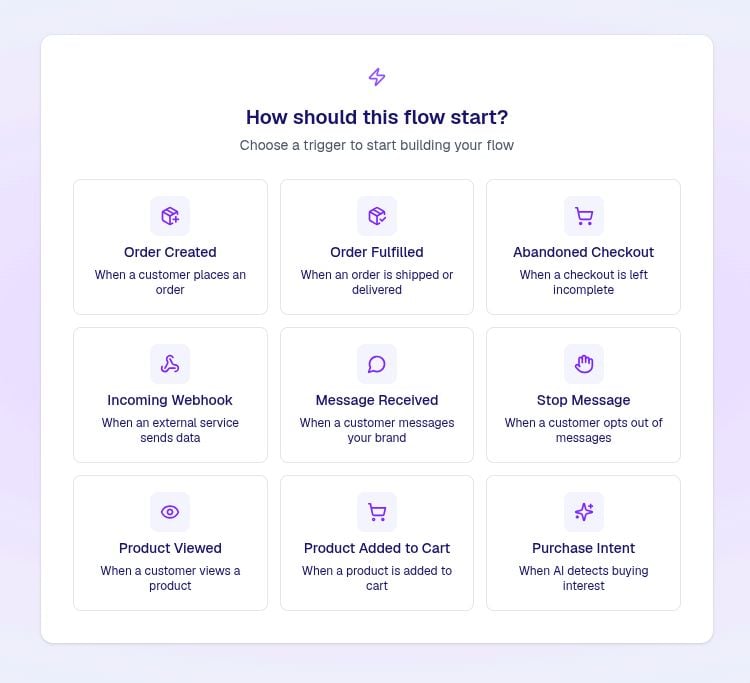 A new order is created in Shopify or WooCommerce. Best for confirmation, cross-sell, post-purchase follow-up.
An order's fulfilment status changes to fulfilled. Best for shipping notifications and review requests.
A checkout is started but not completed within the abandonment window. The bread-and-butter recovery trigger.
A product is added to the cart from the storefront. Use sparingly — this fires often.
A contact views a product page. Useful for browse-abandonment journeys.
The AI assistant detects strong purchase intent in a conversation. Great for nudging undecided buyers with a code.
Any inbound WhatsApp message — optionally filtered by keyword. The hook for keyword campaigns and automations.
A contact sends an opt-out keyword (e.g. STOP, UNSUBSCRIBE). Use to confirm the opt-out and tag the contact.
A POST request to a per-flow URL. Use to trigger flows from your own backend, Zapier, or any system not in the list above.
## Triggers in detail
**Fires:** Immediately after a new order is created in your connected store.
**Memory available:**
| Variable | What it is |
| --------------- | ----------------------------------------------------------------------------------------------------------- |
| `order` | The full order object — totals, line items, discount codes, payment status, shipping address, customer info |
| `summary.order` | A human-readable one-liner you can drop directly into a message template |
**Customer resolution:** TextYess uses the order's customer phone number (or the shipping/billing phone as a fallback). If the order has no phone, the flow cannot run and no execution is created.
**Typical use:** Order confirmation, cross-sell, NPS, review request after a delay.
**Fires:** When an order moves to `fulfilled` status in your connected store (e.g. tracking number assigned, shipped).
**Memory available:**
| Variable | What it is |
| --------------- | ------------------------------------------------- |
| `order` | The full order object — including fulfilment data |
| `summary.order` | One-liner summary |
**Typical use:** Shipping notification, review request, delivery follow-up.
**Fires:** When a checkout is started but not completed within your store's abandonment window. The trigger does not fire if the customer eventually completes the same checkout.
**Memory available:**
| Variable | What it is |
| ------------------ | ------------------------------------------------------------------------------------------------------ |
| `checkout` | The checkout object — line items, total, discounts, customer, billing/shipping address, completion URL |
| `summary.checkout` | A human-readable cart contents string |
**Customer resolution:** The checkout's phone (or customer/shipping/billing phone if present). Checkouts without a phone do not start a flow.
Use `checkout.abandoned_checkout_url` (or the equivalent on your store) inside the **Send Message** step to put a one-click return-to-cart link in your template.
**Typical use:** The classic 2-or-3 step abandoned-cart recovery sequence — wait, check the customer hasn't completed the cart in another tab, then nudge with a return-to-cart link.
**Fires:** Every time the on-site widget records a "product added to cart" event for an identified contact.
**Memory available:**
| Variable | What it is |
| ----------------- | ---------------------------------------------------------- |
| `product` | The product — id, title, price, variants, collections, URL |
| `contact` | The contact who added it |
| `summary.product` | One-liner |
This trigger fires **a lot**. Combine it with frequency-cap protection and consider a **Time Delay + Conditional Split** that bails out if the customer already checked out.
**Fires:** When the on-site widget records a product-page view for an identified contact.
**Memory available:**
| Variable | What it is |
| ----------------- | ------------------- |
| `product` | The viewed product |
| `contact` | The viewing contact |
| `summary.product` | One-liner |
**Typical use:** Browse-abandonment journey — wait 30 minutes, then send a single nudge gated by a Conditional Split that bails out if the customer already bought.
**Fires:** The AI assistant has determined the contact has strong purchase intent for a specific product during a WhatsApp conversation.
**Memory available:**
| Variable | What it is |
| ----------------- | ---------------------------------------------------- |
| `product` | The product the AI thinks they want |
| `contact` | The contact in conversation |
| `conversation` | A reference to the conversation it was inferred from |
| `summary.product` | One-liner |
**Typical use:** Send a personalised discount or restock alert from the merchant's voice instead of the AI's, to convert undecided buyers.
**Fires:** Any inbound WhatsApp message from a contact. Optionally restricted to messages that match a **filter** (keyword or pattern).
**Memory available:**
| Variable | What it is |
| -------------- | ------------------------------- |
| `message` | The message — id, text, type |
| `conversation` | A reference to the conversation |
| `contact` | The sending contact |
**Filter examples:**
* `START` — only fire when the message body is `START` (case-insensitive)
* `welcome` — only fire when the message contains `welcome`
**Typical use:** Keyword campaigns (`SALE` → coupon), opt-in confirmation flows, support routing.
A new order is created in Shopify or WooCommerce. Best for confirmation, cross-sell, post-purchase follow-up.
An order's fulfilment status changes to fulfilled. Best for shipping notifications and review requests.
A checkout is started but not completed within the abandonment window. The bread-and-butter recovery trigger.
A product is added to the cart from the storefront. Use sparingly — this fires often.
A contact views a product page. Useful for browse-abandonment journeys.
The AI assistant detects strong purchase intent in a conversation. Great for nudging undecided buyers with a code.
Any inbound WhatsApp message — optionally filtered by keyword. The hook for keyword campaigns and automations.
A contact sends an opt-out keyword (e.g. STOP, UNSUBSCRIBE). Use to confirm the opt-out and tag the contact.
A POST request to a per-flow URL. Use to trigger flows from your own backend, Zapier, or any system not in the list above.
## Triggers in detail
**Fires:** Immediately after a new order is created in your connected store.
**Memory available:**
| Variable | What it is |
| --------------- | ----------------------------------------------------------------------------------------------------------- |
| `order` | The full order object — totals, line items, discount codes, payment status, shipping address, customer info |
| `summary.order` | A human-readable one-liner you can drop directly into a message template |
**Customer resolution:** TextYess uses the order's customer phone number (or the shipping/billing phone as a fallback). If the order has no phone, the flow cannot run and no execution is created.
**Typical use:** Order confirmation, cross-sell, NPS, review request after a delay.
**Fires:** When an order moves to `fulfilled` status in your connected store (e.g. tracking number assigned, shipped).
**Memory available:**
| Variable | What it is |
| --------------- | ------------------------------------------------- |
| `order` | The full order object — including fulfilment data |
| `summary.order` | One-liner summary |
**Typical use:** Shipping notification, review request, delivery follow-up.
**Fires:** When a checkout is started but not completed within your store's abandonment window. The trigger does not fire if the customer eventually completes the same checkout.
**Memory available:**
| Variable | What it is |
| ------------------ | ------------------------------------------------------------------------------------------------------ |
| `checkout` | The checkout object — line items, total, discounts, customer, billing/shipping address, completion URL |
| `summary.checkout` | A human-readable cart contents string |
**Customer resolution:** The checkout's phone (or customer/shipping/billing phone if present). Checkouts without a phone do not start a flow.
Use `checkout.abandoned_checkout_url` (or the equivalent on your store) inside the **Send Message** step to put a one-click return-to-cart link in your template.
**Typical use:** The classic 2-or-3 step abandoned-cart recovery sequence — wait, check the customer hasn't completed the cart in another tab, then nudge with a return-to-cart link.
**Fires:** Every time the on-site widget records a "product added to cart" event for an identified contact.
**Memory available:**
| Variable | What it is |
| ----------------- | ---------------------------------------------------------- |
| `product` | The product — id, title, price, variants, collections, URL |
| `contact` | The contact who added it |
| `summary.product` | One-liner |
This trigger fires **a lot**. Combine it with frequency-cap protection and consider a **Time Delay + Conditional Split** that bails out if the customer already checked out.
**Fires:** When the on-site widget records a product-page view for an identified contact.
**Memory available:**
| Variable | What it is |
| ----------------- | ------------------- |
| `product` | The viewed product |
| `contact` | The viewing contact |
| `summary.product` | One-liner |
**Typical use:** Browse-abandonment journey — wait 30 minutes, then send a single nudge gated by a Conditional Split that bails out if the customer already bought.
**Fires:** The AI assistant has determined the contact has strong purchase intent for a specific product during a WhatsApp conversation.
**Memory available:**
| Variable | What it is |
| ----------------- | ---------------------------------------------------- |
| `product` | The product the AI thinks they want |
| `contact` | The contact in conversation |
| `conversation` | A reference to the conversation it was inferred from |
| `summary.product` | One-liner |
**Typical use:** Send a personalised discount or restock alert from the merchant's voice instead of the AI's, to convert undecided buyers.
**Fires:** Any inbound WhatsApp message from a contact. Optionally restricted to messages that match a **filter** (keyword or pattern).
**Memory available:**
| Variable | What it is |
| -------------- | ------------------------------- |
| `message` | The message — id, text, type |
| `conversation` | A reference to the conversation |
| `contact` | The sending contact |
**Filter examples:**
* `START` — only fire when the message body is `START` (case-insensitive)
* `welcome` — only fire when the message contains `welcome`
**Typical use:** Keyword campaigns (`SALE` → coupon), opt-in confirmation flows, support routing.
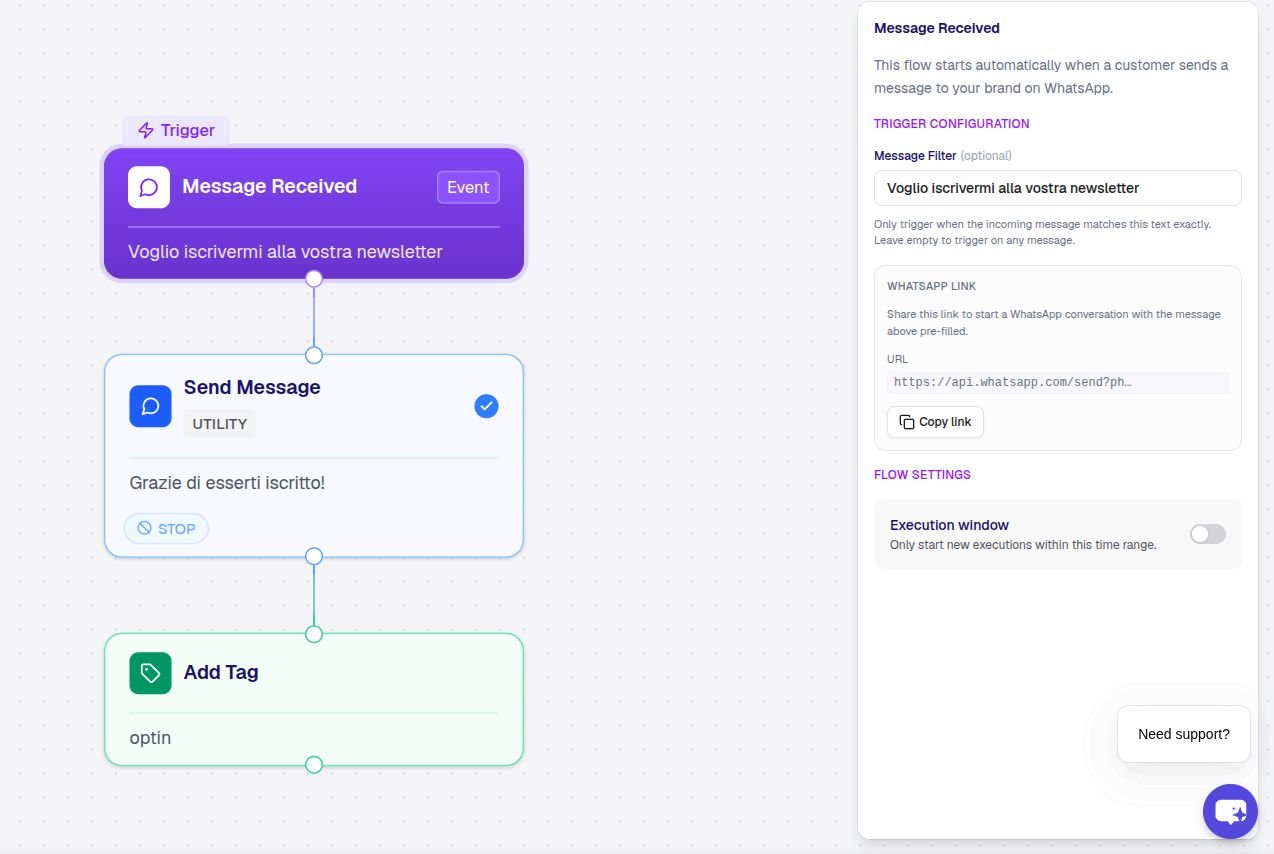 **Fires:** When TextYess detects an opt-out keyword in an inbound message (STOP, UNSUBSCRIBE, and configured equivalents). This is the trigger that fires when a contact wants to leave.
**Memory available:** Same as **New Message**.
**Typical use:** Send a "you've been unsubscribed" confirmation, tag the contact with `opted-out`, optionally notify your team.
**Fires:** When a POST request hits the flow's webhook URL with a valid payload.
**Memory available:**
| Variable | What it is |
| --------- | ----------------------------------------------------------------------------------------------------------- |
| `payload` | Whatever JSON body you posted — every field is addressable, e.g. `payload.first_name`, `payload.cart_value` |
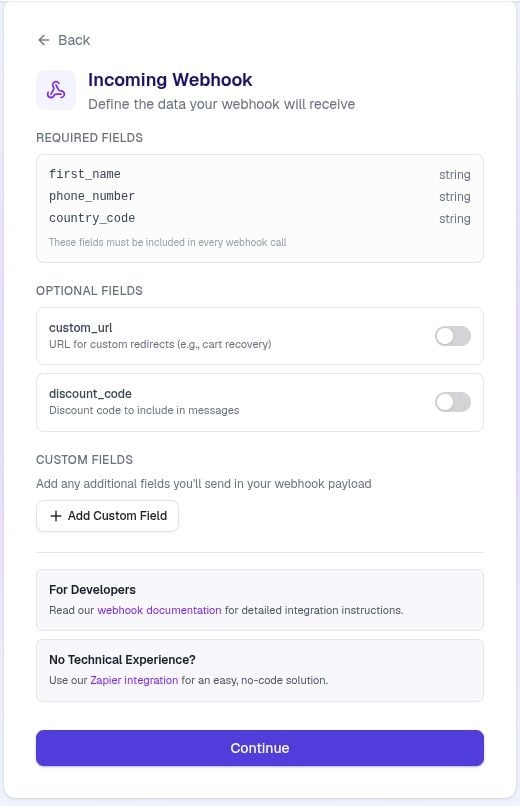
**Customer resolution:** The webhook payload must contain at least a `phone_number` (E.164 format) and ideally a `first_name`. See the [Webhook for flows](/flow-webhook) reference for the full contract.
**Typical use:** Trigger a flow from your own backend or an integration we don't ship natively — for example, a CRM tag, a finished video render, or a custom scheduling tool.
The URL and secret are generated when you publish the flow. Open the trigger node after publishing to copy them.
**Fires:** When TextYess detects an opt-out keyword in an inbound message (STOP, UNSUBSCRIBE, and configured equivalents). This is the trigger that fires when a contact wants to leave.
**Memory available:** Same as **New Message**.
**Typical use:** Send a "you've been unsubscribed" confirmation, tag the contact with `opted-out`, optionally notify your team.
**Fires:** When a POST request hits the flow's webhook URL with a valid payload.
**Memory available:**
| Variable | What it is |
| --------- | ----------------------------------------------------------------------------------------------------------- |
| `payload` | Whatever JSON body you posted — every field is addressable, e.g. `payload.first_name`, `payload.cart_value` |
**Customer resolution:** The webhook payload must contain at least a `phone_number` (E.164 format) and ideally a `first_name`. See the [Webhook for flows](/flow-webhook) reference for the full contract.
**Typical use:** Trigger a flow from your own backend or an integration we don't ship natively — for example, a CRM tag, a finished video render, or a custom scheduling tool.
The URL and secret are generated when you publish the flow. Open the trigger node after publishing to copy them.
 ## Choosing the right trigger
Use **New Order** for confirmation, **Fulfilled Order** for shipping, **Abandoned Checkout** for recovery.
Use **Product Viewed** for browse-abandonment, **Product Added to Cart** only if you can tolerate frequent firings.
Use **New Message** with a filter for keyword campaigns, **Stop Message** for opt-out confirmation, **Purchase Intent** for AI-detected interest.
Use **Webhook (Generic)**. Generate the URL when you publish.
Next: [Steps](/flows/steps) — the actions and control nodes you compose between the trigger and the end.
## Choosing the right trigger
Use **New Order** for confirmation, **Fulfilled Order** for shipping, **Abandoned Checkout** for recovery.
Use **Product Viewed** for browse-abandonment, **Product Added to Cart** only if you can tolerate frequent firings.
Use **New Message** with a filter for keyword campaigns, **Stop Message** for opt-out confirmation, **Purchase Intent** for AI-detected interest.
Use **Webhook (Generic)**. Generate the URL when you publish.
Next: [Steps](/flows/steps) — the actions and control nodes you compose between the trigger and the end.