> ## Documentation Index
> Fetch the complete documentation index at: https://docs.textyess.com/llms.txt
> Use this file to discover all available pages before exploring further.
# Setup Klaviyo
> Learn how to integrate TextYess and Klaviyo.
## Navigate to the configuration page
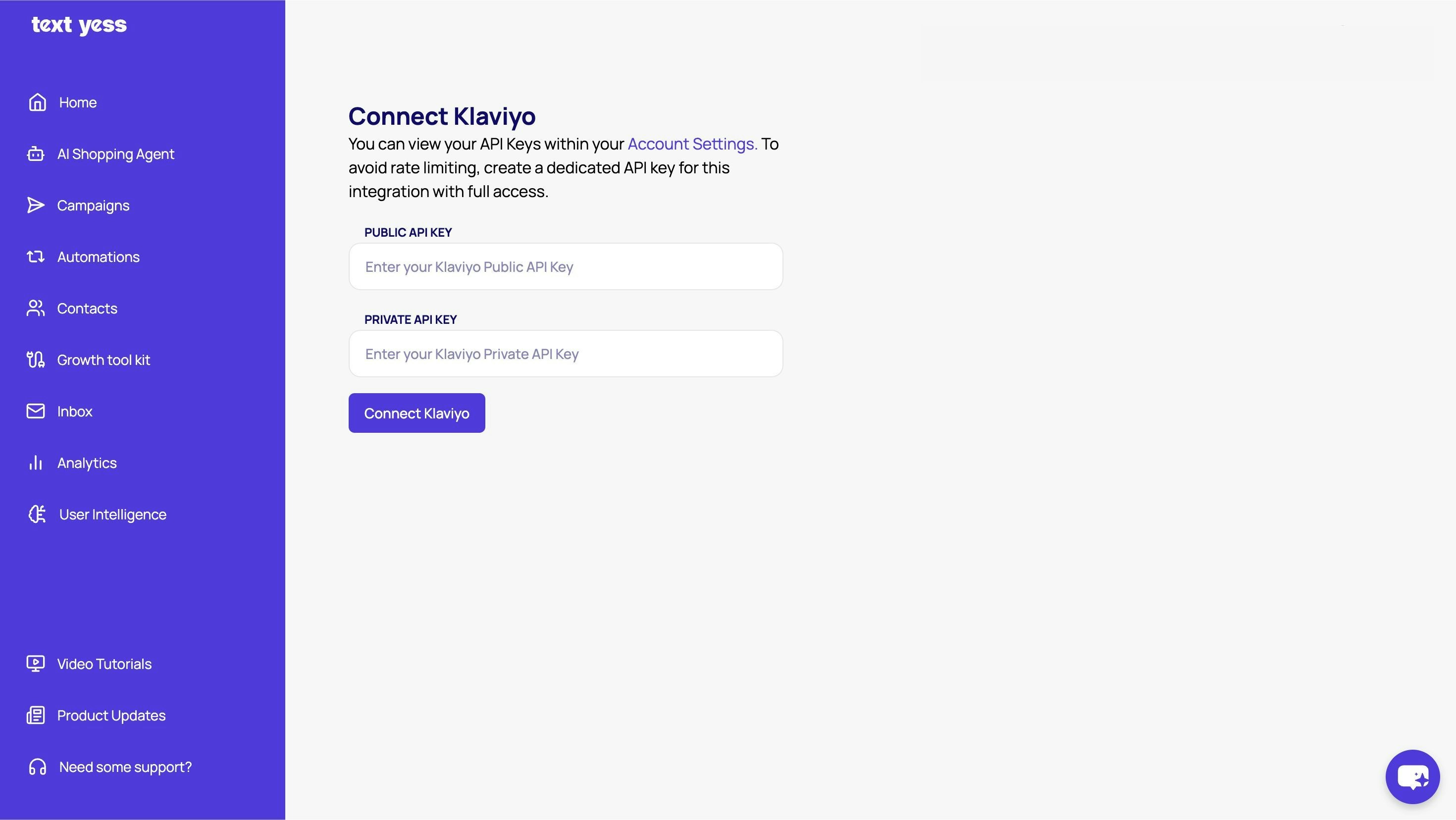
The first step is to configure your Klaviyo account into textyess at the following [page](https://ai.textyess.com/integrations/klaviyo).
 ### Where to find the API KEY?
Remember that the API key is located in the "Settings" section of your Klaviyo account, you can navigate to it through [this link](https://www.klaviyo.com/settings/account/api-keys). In order to integrate the account you will need:
* a Private API Key with full access
* the Public API Key and Private API Key
You can now enter the API Keys in the configuation page and then click on "Connect Klaviyo"
## This will allow us to
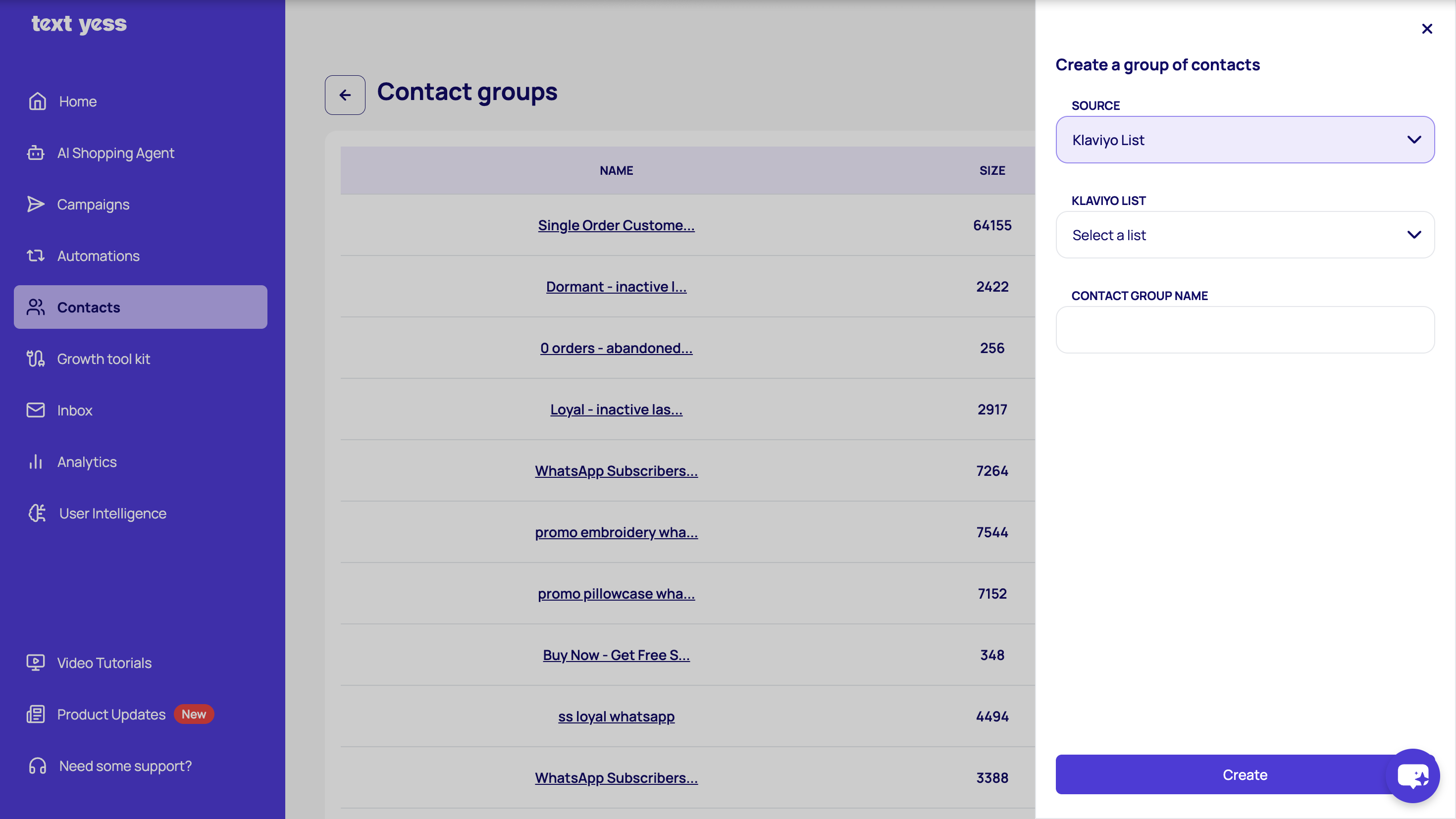
From the source drop-down menu, select Klaviyo List or Segment, then choose the list or segment you want to import. Enter a name for your contact group and click "Create". The group will be automatically created in TextYess and populated with the selected contacts.
### Where to find the API KEY?
Remember that the API key is located in the "Settings" section of your Klaviyo account, you can navigate to it through [this link](https://www.klaviyo.com/settings/account/api-keys). In order to integrate the account you will need:
* a Private API Key with full access
* the Public API Key and Private API Key
You can now enter the API Keys in the configuation page and then click on "Connect Klaviyo"
## This will allow us to
From the source drop-down menu, select Klaviyo List or Segment, then choose the list or segment you want to import. Enter a name for your contact group and click "Create". The group will be automatically created in TextYess and populated with the selected contacts.
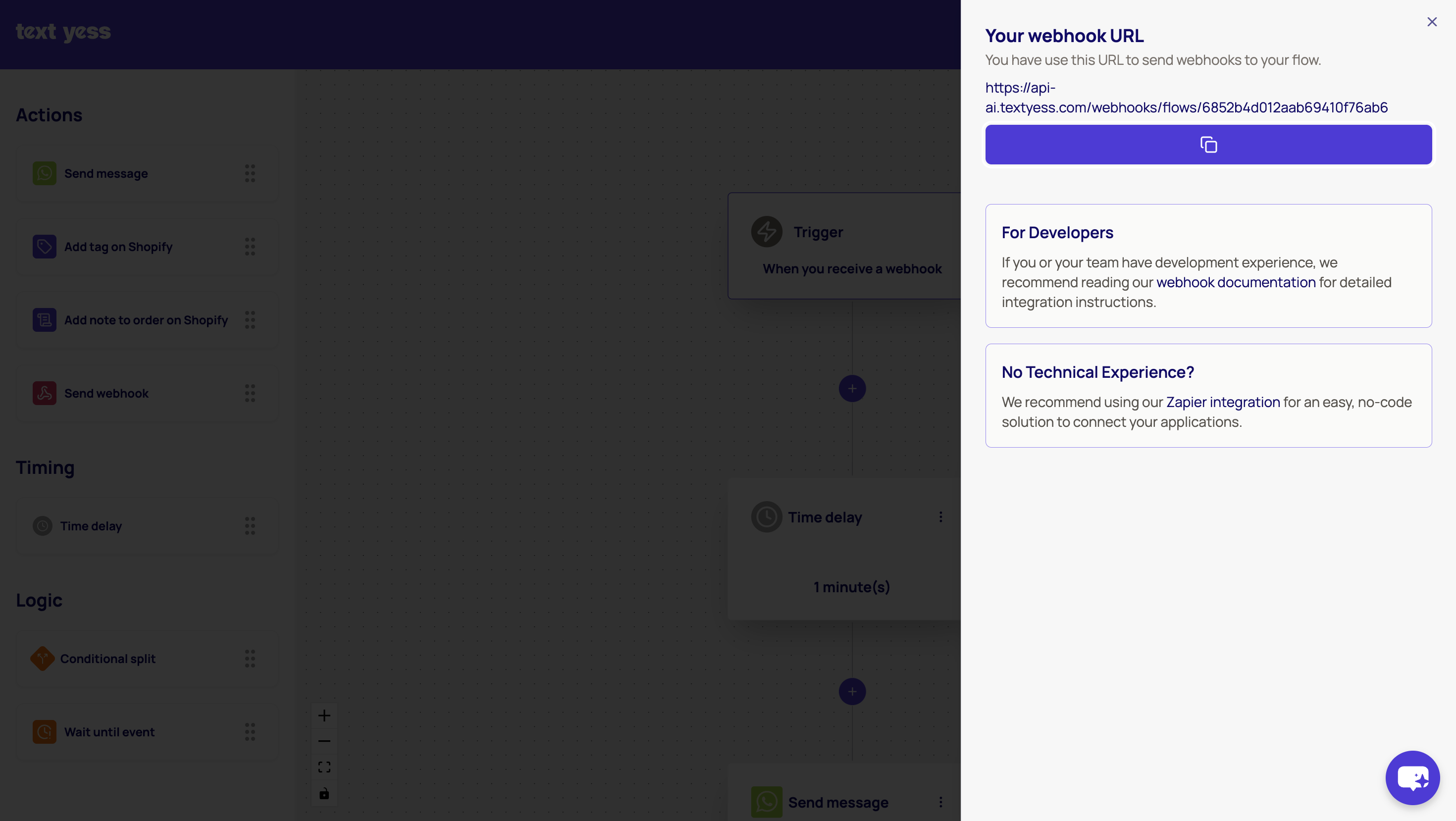
 In TextYess, go to Automations and click on Create. Set the trigger to Webhook, and you will see a URL in the trigger settings that you need to copy.
 Next, switch to Klaviyo and go to Flows, where you can add the webhook either to an existing flow or create a new one. Paste the destination URL you copied from TextYess into the webhook settings in Klaviyo, and then insert the following JSON body:
```
{
"first_name": "{{ person.first_name }}",
"phone_number": "{{ person.phone_number }}",
"country_code": "IT",
"email": "{{ person.email }}"
}
```
Next, switch to Klaviyo and go to Flows, where you can add the webhook either to an existing flow or create a new one. Paste the destination URL you copied from TextYess into the webhook settings in Klaviyo, and then insert the following JSON body:
```
{
"first_name": "{{ person.first_name }}",
"phone_number": "{{ person.phone_number }}",
"country_code": "IT",
"email": "{{ person.email }}"
}
```
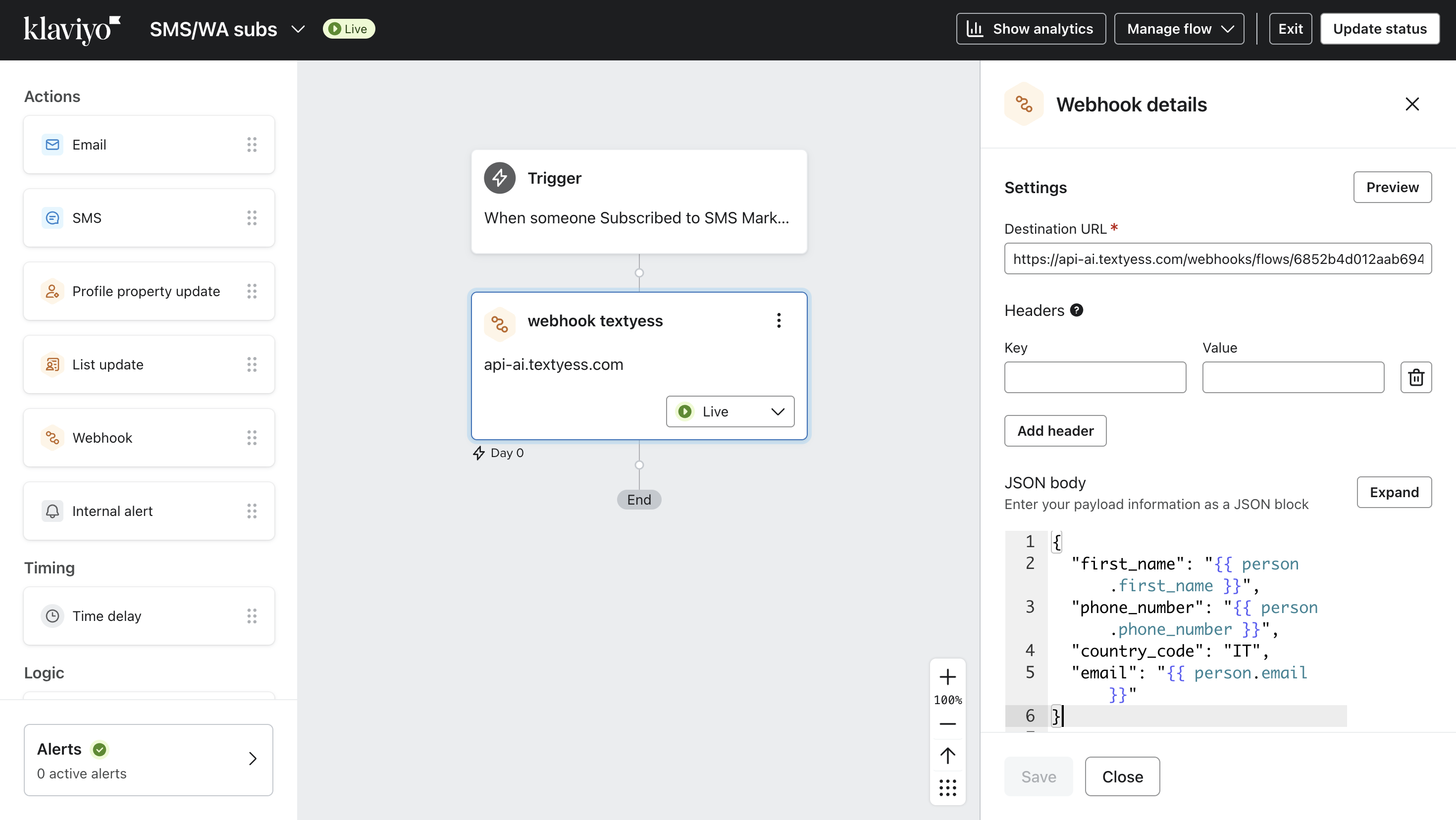 With this setup, you are now passing data from Klaviyo to TextYess, which allows you to send WhatsApp messages directly to these profiles.