> ## Documentation Index
> Fetch the complete documentation index at: https://docs.textyess.com/llms.txt
> Use this file to discover all available pages before exploring further.

# WhatsApp Bubble installation

> Install the WhatsApp chat bubble on your Shopify store. This floating widget allows customers to start a conversation with your AI Shopping-Assistant via WhatsApp.

<Note>
  Looking for the Onsite Chat Widget instead? Check out the [Onsite Widget installation guide](/onsite-widget-installation-shopify).
</Note>

<Steps>
  <Step title="Customize your widget appearance">
    Click on the "Growth tool kit" section of the menu. From there select the Chat Bubble integration block and personalize your widget.
  </Step>

  <Step title="Get the code snippet">
    From there you will find the code snippet to insert into your Shopify theme. <br />
    The code will look something like this:

    ```html theme={null}
    <script
      type="module"
      src="https://cdn.textyess.com/v2/textyess-widget-components/textyess-widget-components.esm.js"
      defer
    ></script>
    <textyess-bubble-widget user_id="your_organization_id" />
    ```
  </Step>

  <Step title="Go to the Online store section">
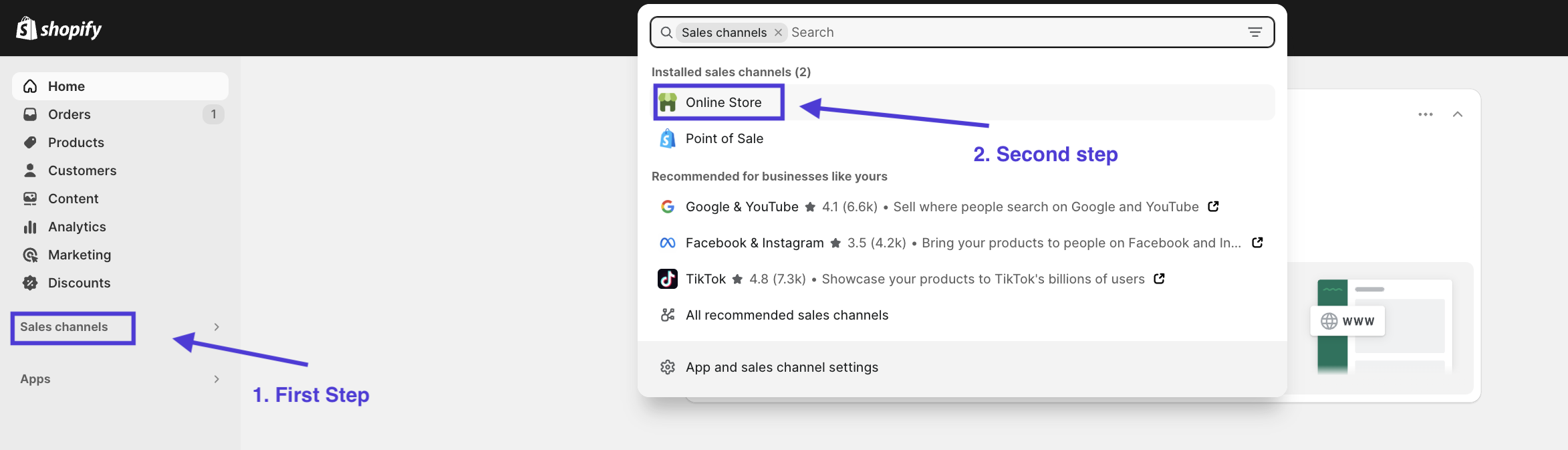
    Once inside your store click on "Sales channels" from the menu on the right. <br />

    A pop-up will appear at the top. From there click on "Online store"
    <Frame>
      <img src="https://mintcdn.com/textyess/CVMciMMYq5u5Kcmp/images/first_step.png?fit=max&auto=format&n=CVMciMMYq5u5Kcmp&q=85&s=263ee852b03f251b9663c85413fb1e69" width="2346" height="673" data-path="images/first_step.png" />
    </Frame>
  </Step>

  <Step title="Open the Theme editor">
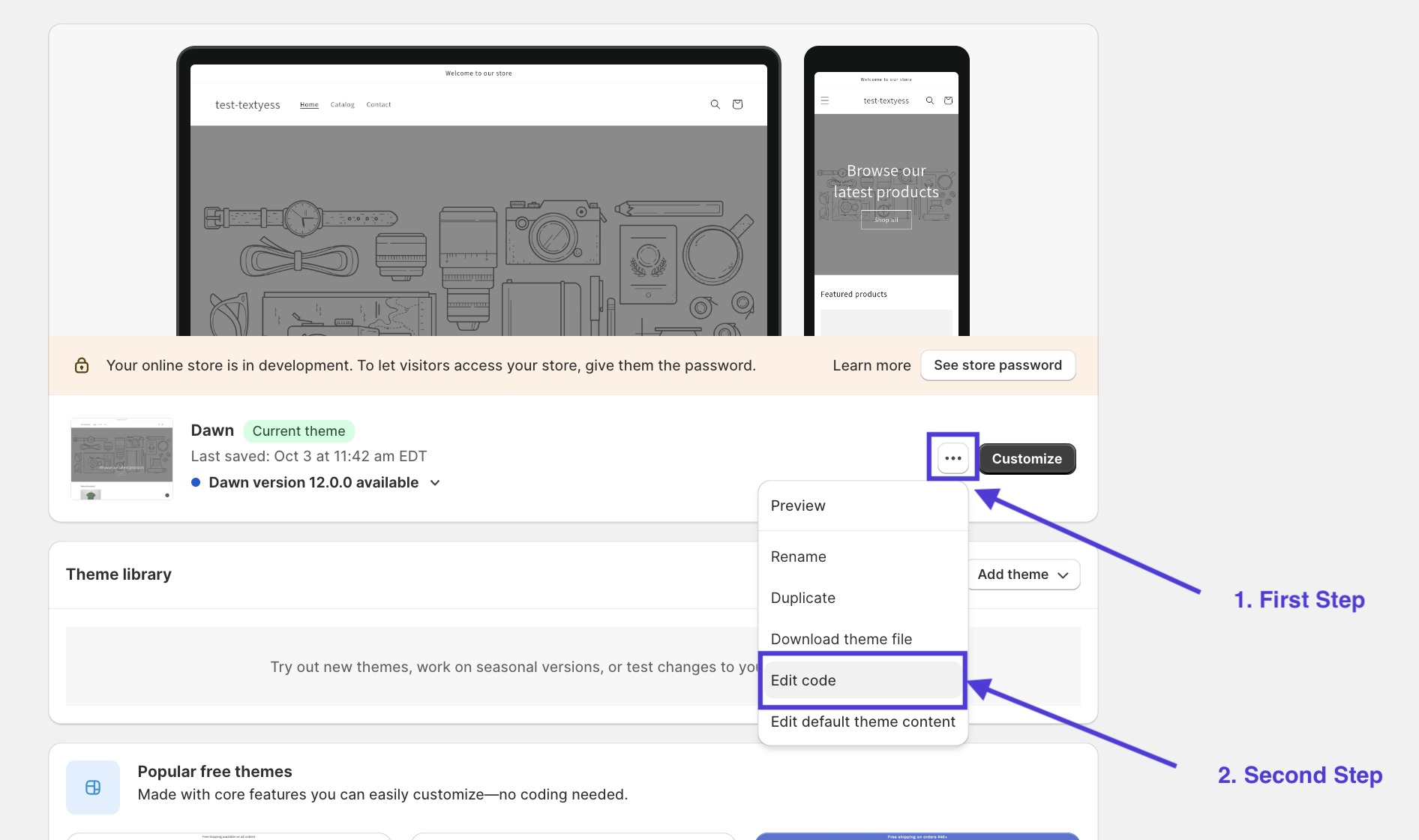
    Opening the theme editor is very simple. Just click on the three dots of the theme you want to update. Then click on "Edit code". <br />

    <Tip> Before proceeding we strongly recommend that you make backups of your current theme. To do this, click on the three dots, then click on "Duplicate" and/or "Download theme file."</Tip>

    <Frame>
      <img src="https://mintcdn.com/textyess/CVMciMMYq5u5Kcmp/images/second_step.png?fit=max&auto=format&n=CVMciMMYq5u5Kcmp&q=85&s=42838096c44929d1b93e488979eab6b0" width="1892" height="1120" data-path="images/second_step.png" />
    </Frame>
  </Step>

  <Step title="Edit the theme.liquid file">
    This might seem the scariest part for those without technical skills, but it is actually a very simple operation. <br />

    As a first thing you will notice that on the left side you have a bunch of files. Look for one called ***theme.liquid*** and click on it. <br />

    On the right, a file with codes will have opened for you. Don't worry, you don't need to know what it says. What you need to do now is scroll to the end of the file and look for the `</body>` tag <br />

    <Tip>
      If you cannot find the tag press **cmd + F** on Mac or **ctrl + F** on Windows. Then type `</body>` to find the tag within the search.
    </Tip>

    On the right, a file with codes will have opened for you. Don't worry, you don't need to know what it says. What you need to do now is scroll to the end of the file and look for the `</body>` tag <br />

    Once you find the tag, paste the code snippet you generated from TextYess (see step "Get the code snippet") **right before** the the `</body>` tag. Remember that if necessary you can create new lines by pressing the enter key in order to put space between the TextYess's code snippet and the `</body>` tag. <br />

    Your code should look something like this. <br />

    ```html theme={null}
    <script
      type="module"
      src="https://cdn.textyess.com/v1/textyess-widget-components/textyess-widget-components.esm.js"
      defer
    />
    <textyess-bubble-widget user_id="your_user_id" />

    </body>
    ```

    We are almost finished! <br />

    Now click the "Save" button in the upper right corner, then click the "Preview store" button to make sure the widget is displayed correctly. <br />

    <Check>Congratulations, we are live! 🥳</Check>

    <Frame>
      <img src="https://mintcdn.com/textyess/CVMciMMYq5u5Kcmp/images/third_step.png?fit=max&auto=format&n=CVMciMMYq5u5Kcmp&q=85&s=fea9756d0622b963af7ecda9db0d776b" width="2880" height="1800" data-path="images/third_step.png" />
    </Frame>
  </Step>
</Steps>