

Looking for the WhatsApp Bubble instead? Check out the WhatsApp Bubble installation guide.
- Full chat experience with a centered modal dialog
- Product carousel with variant selection
- Persistent conversations across page navigation
- Customizable appearance with colors, banners, and positioning
1
Customize your widget appearance
In TextYess, open AI Agents → Onsite → Appearance and personalize your widget.You can customize:
- Colors: Background, bubble, and icon colors
- Text: Dialog title, welcome message, and bubble text
- Position: Bottom-right corner or right-center of the screen
- Banner image: Display a promotional image at the top of the chat
- Popular questions: Suggested questions for customers to ask
2
Switch the widget on for your store
The first card of the Appearance page is Store visibility. The widget stays Hidden on your site until you turn this switch on, even after you install the code below. Publishing your settings never changes it.Once the snippet is installed, the card also tells you whether it is loading on your site.
3
Get the code snippet
The Appearance page shows the code snippet to insert into your WooCommerce theme. It carries no appearance settings, so it never changes after a save.
The code will look something like this:
The code will look something like this:
Keep
install="managed" in the tag. It tells the widget that TextYess manages it, so the Store visibility switch applies. A pasted snippet without it, from an earlier version of this guide, keeps rendering on its own and ignores the switch.The onsite widget uses the
<textyess-ai-widget> tag, which is different from the WhatsApp bubble widget (<textyess-bubble-widget>).4
Go to Appearance > Editor
Once inside your store click on “Appearance” from the menu on the right.
From there click on “Editor”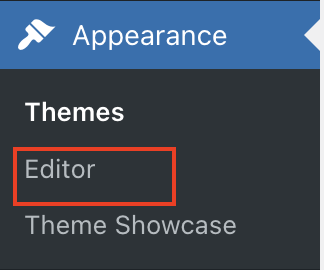
From there click on “Editor”
5
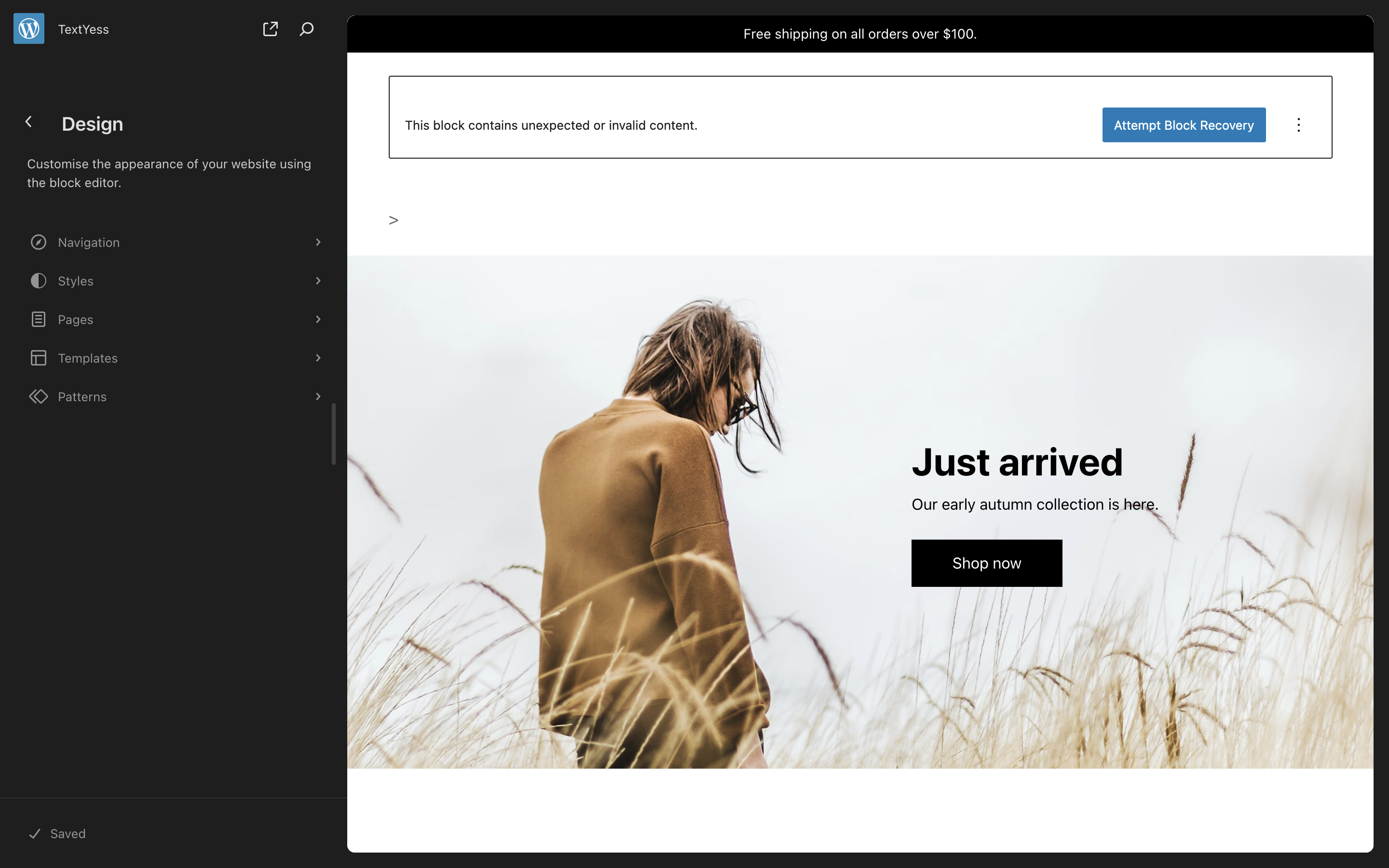
Open the Patterns section
Once opened the editor, you should see something like this. You will need to click the “Patterns”
6
Open the Header pattern
Several patterns will be shown. You need to scroll down and select the one named “Header”
Once again, more than one header pattern may shown. Click the one in which you want to show the widget.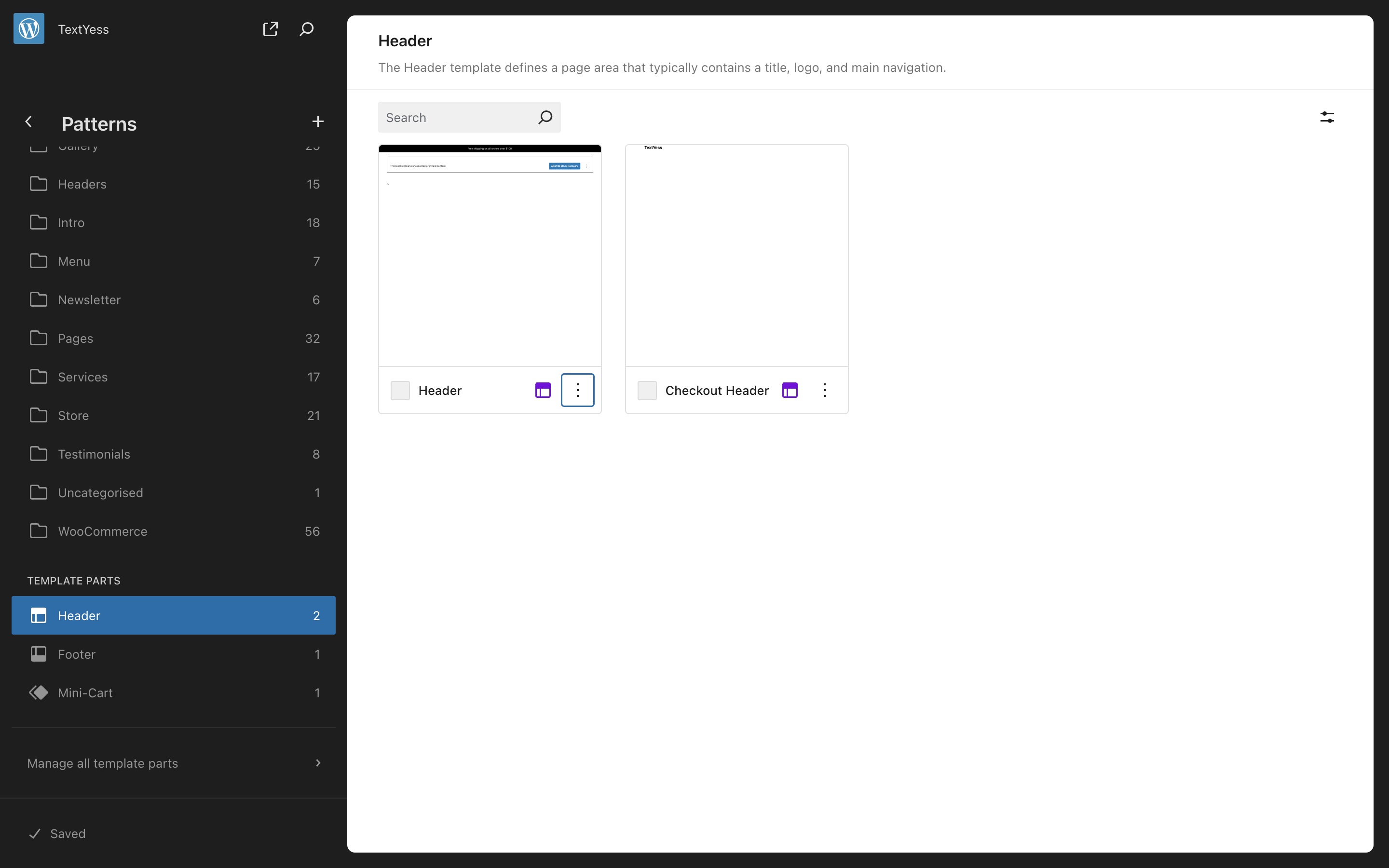
Once again, more than one header pattern may shown. Click the one in which you want to show the widget.
7
Edit and save the code
Go to the bottom of the file and paste the code from step 2 right before the last
Once you have edited the code, click save in the upper right corner.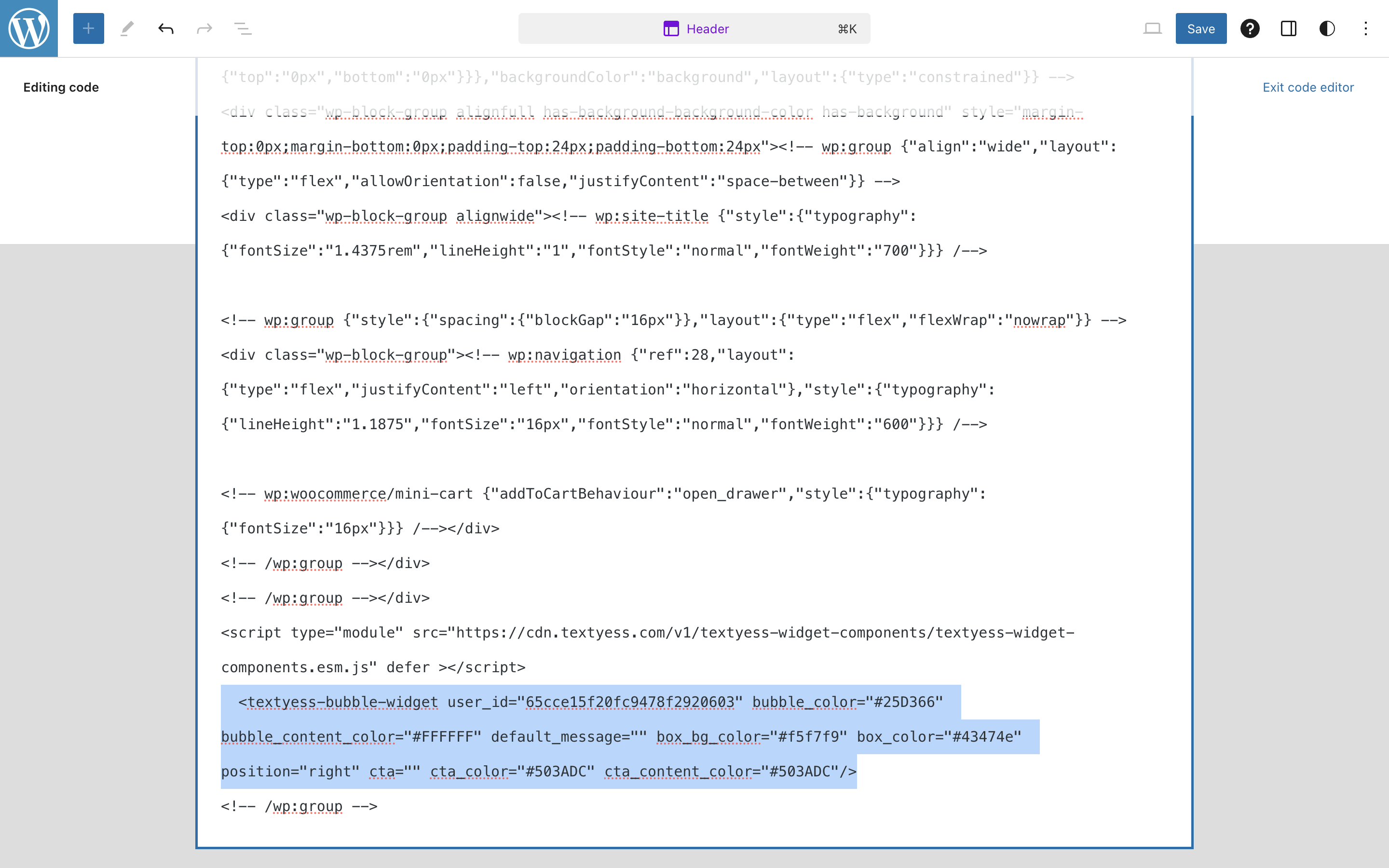
<!-- /wp:group --> Once you have edited the code, click save in the upper right corner.
Congratulations, we are live!
Customization Options
All colors, text, position, images, and suggested questions are configured in AI Agents → Onsite → Appearance in TextYess. Saved changes publish to your store automatically — you never edit the snippet again. Two options are set as attributes on the<textyess-ai-widget> tag itself: