

Navigate to the installation page
The first step is to install your TextYess account into Hubspot at the following page. You’ll click on “Install” and will be redirected to Hubspot to authorize the integration.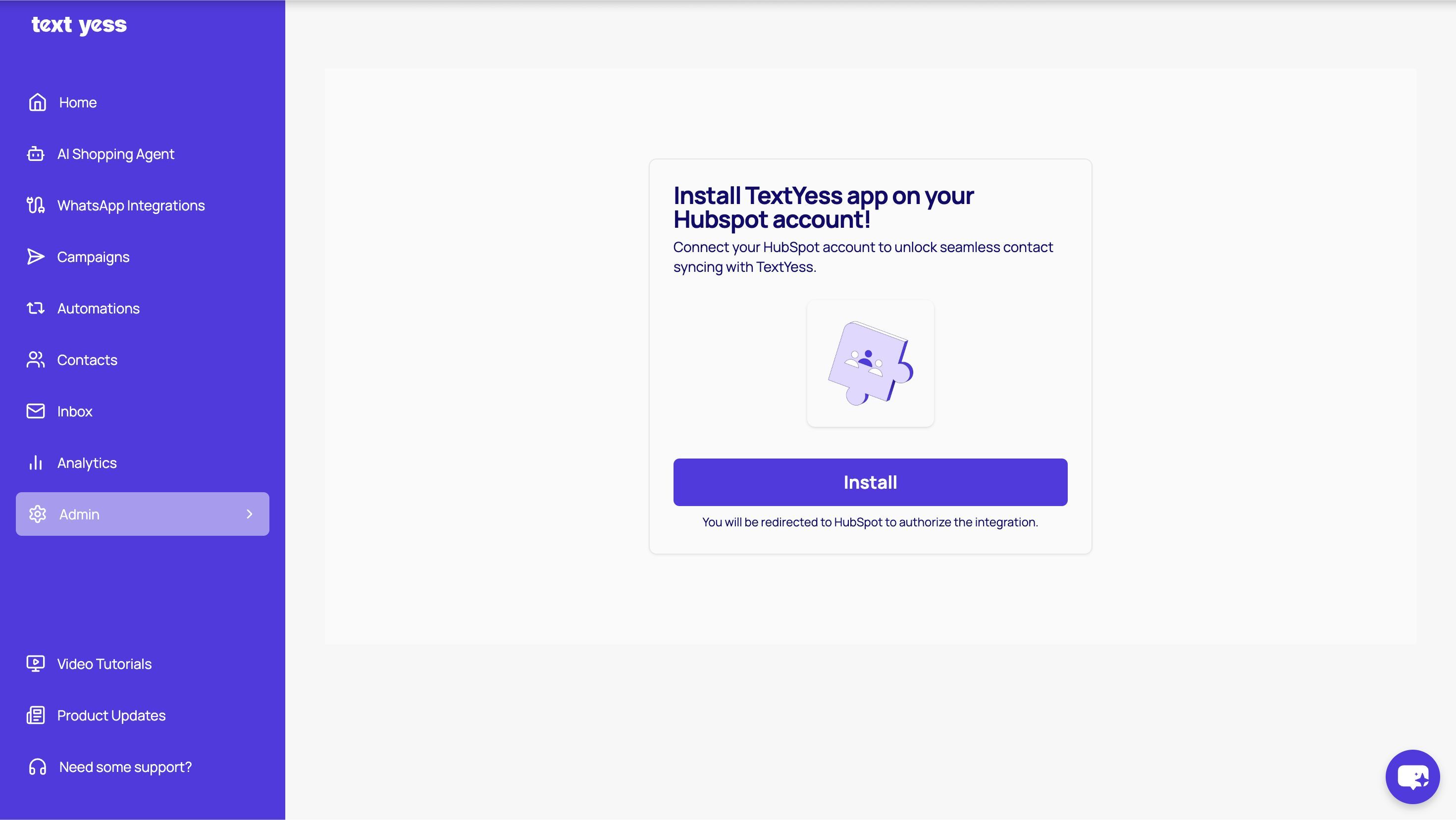
This will allow us to
1
Import Hubspot Static Lists to TextYess
From the source drop-down menu, select Hubspot Static List, then choose the list you want to import. Enter a name for your contact group and click “Create”. The group will be automatically created in TextYess and populated with the selected contacts.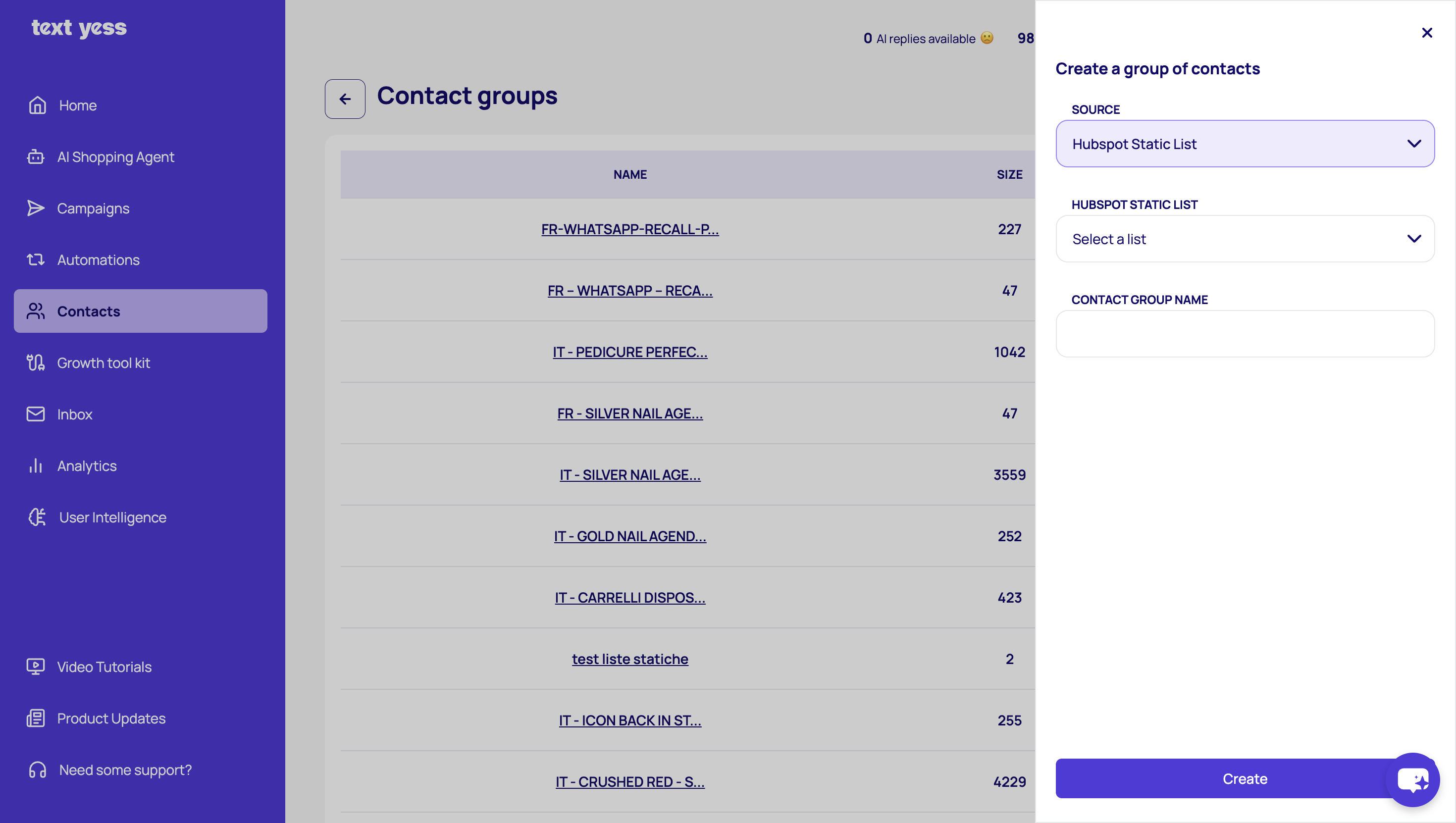
2
Create webhooks to pass information from Hubspot workflows to TextYess automations
In TextYess, go to Automations and click on Create. Set the trigger to Webhook, and you will see a URL in the trigger settings that you need to copy.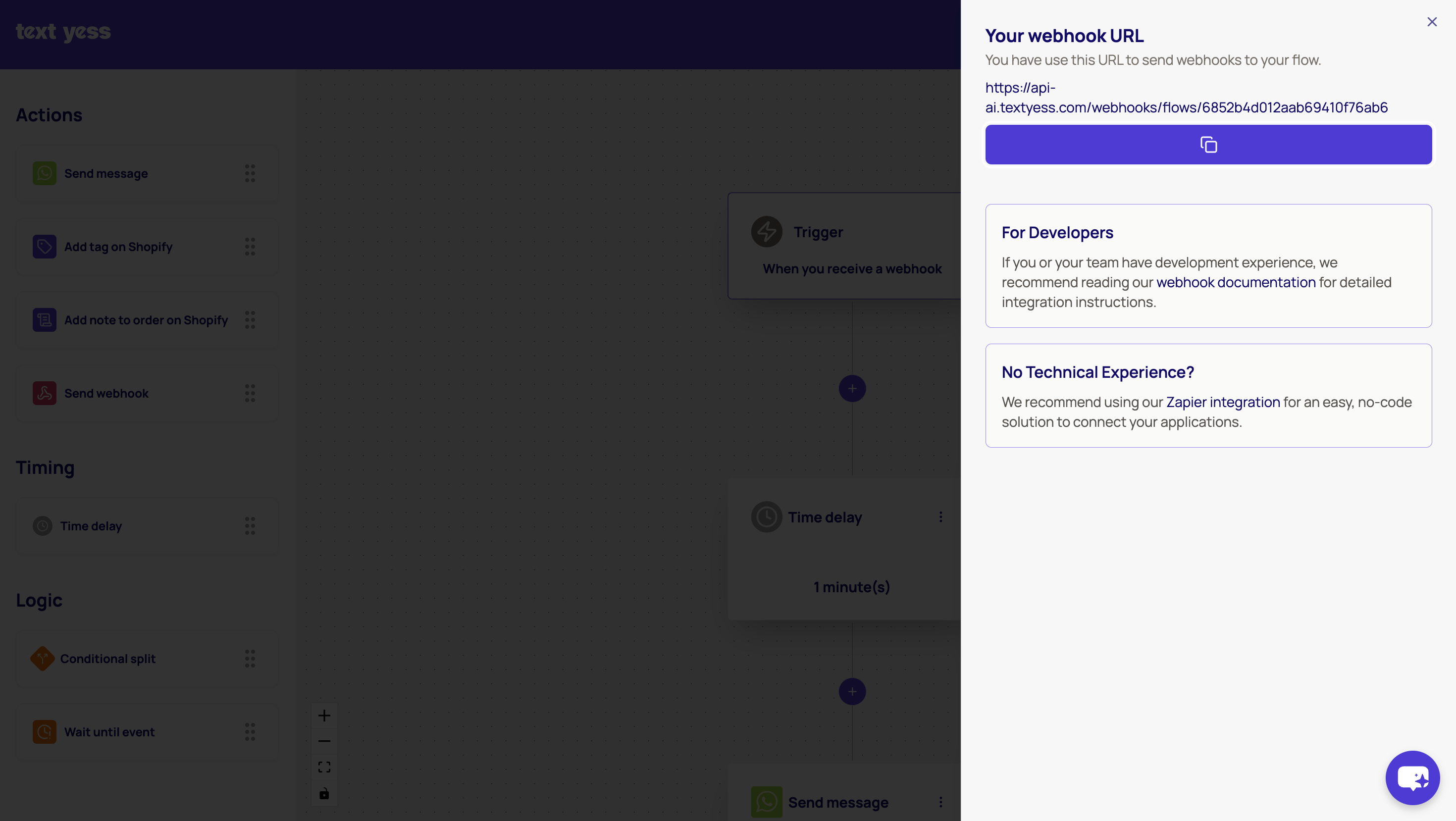 Next, switch to Hubspot and go to workflows, where you can add the webhook either to an existing flow or create a new one. Paste the destination URL you copied from TextYess into URL webhook in Hubspot, and then fill in the keys and properties as shown in the image below.
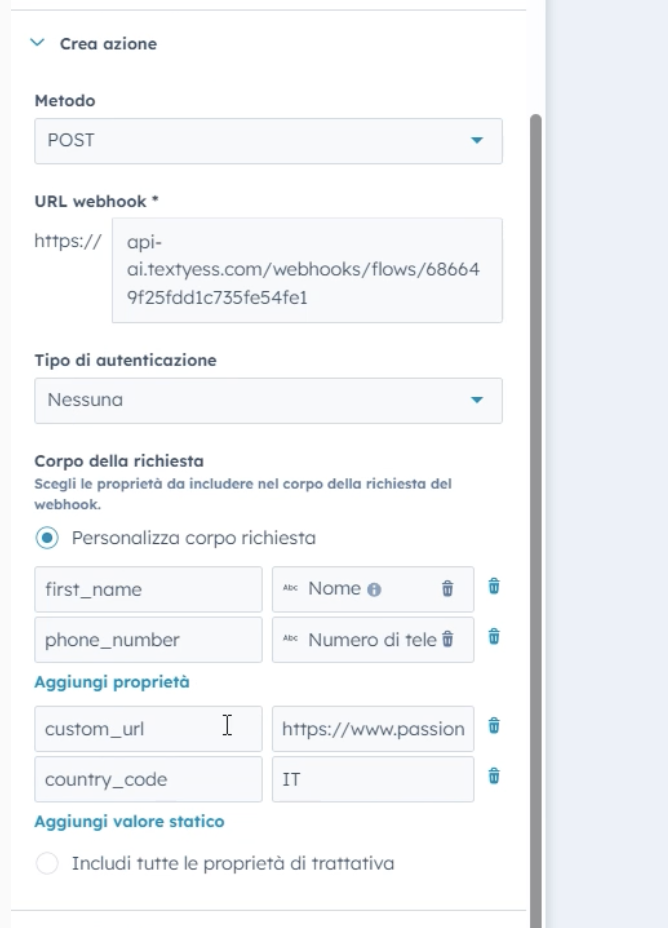 With this setup, you are now passing data from Hubspot to TextYess, which allows you to send WhatsApp messages directly to these profiles.