

Add the button with no code
This method needs a Shopify store on an Online Store 2.0 theme. App blocks work only on this theme type.1
Open the theme editor
In TextYess, click on “Growth Tool Kit” in the menu. On the “WhatsApp button on product page” card, click “Set up the button”. This opens the “Product page button” screen. Click the “Open Shopify Theme Editor” button. This opens Shopify’s theme editor on your product template, so you do not need to find it by hand.
2
Add the WhatsApp Button block
In the theme editor, find the “Apps” section on the product template. Drag “TextYess WhatsApp Button” into the section. Place the block under the “Add to cart” button.
3
Save your changes
Click “Save”.
What the theme editor controls
The theme editor controls only the position of the button on the page. TextYess controls the button label, the colors, the message, and the language. To change these, go to “Growth Tool Kit” in TextYess. Click “Set up the button” on the “WhatsApp button on product page” card. The default message already names the product a shopper is viewing. If you write your own message, click “Insert product name” to add it. TextYess fills in the correct product name on every product page. TextYess translates the message into 34 supported languages. When a store publishes a language outside this list, the button shows the merchant’s original wording in that language instead of a translation. You write one message and review no translations.Install with a code snippet
Use this method if your store is not on Shopify, or if you already installed the button with a code snippet.1
Customize your widget appearance
In TextYess, click on “Growth Tool Kit” in the menu. On the “WhatsApp button on product page” card, click “Set up the button”. This opens the “Product page button” screen. Personalize your widget there.
2
Get the code snippet
From there you will find the code snippet to insert into your Shopify theme.
The code will look something like this:
The code will look something like this:
3
Go to the Online store section
Once inside your store click on “Sales channels” from the menu on the right.
A pop-up will appear at the top. From there click on “Online store”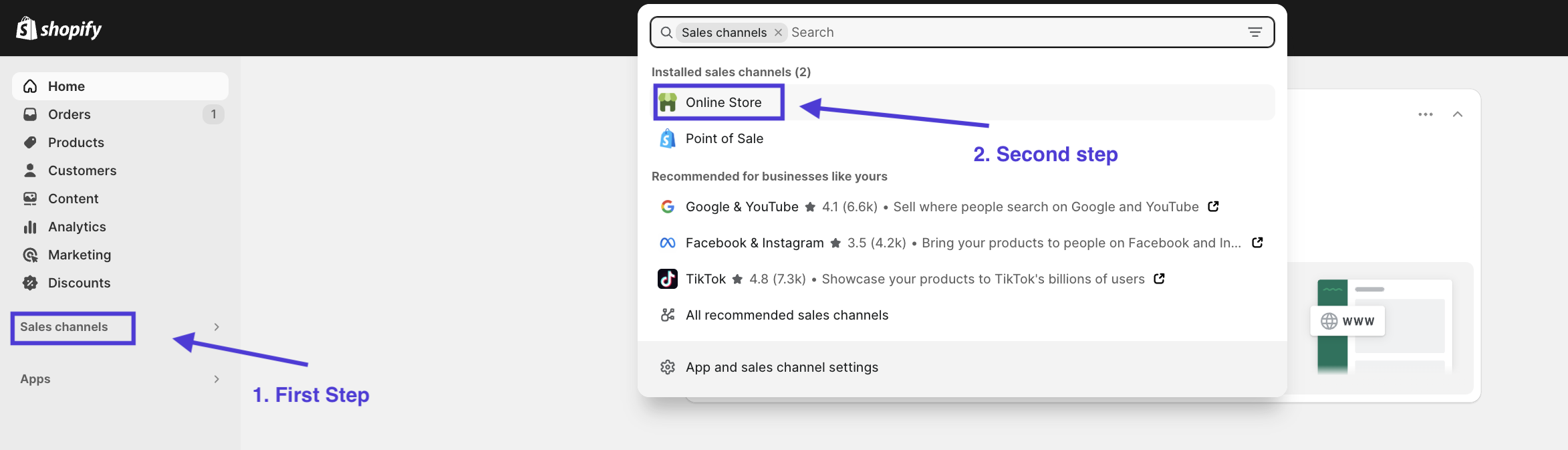
A pop-up will appear at the top. From there click on “Online store”
4
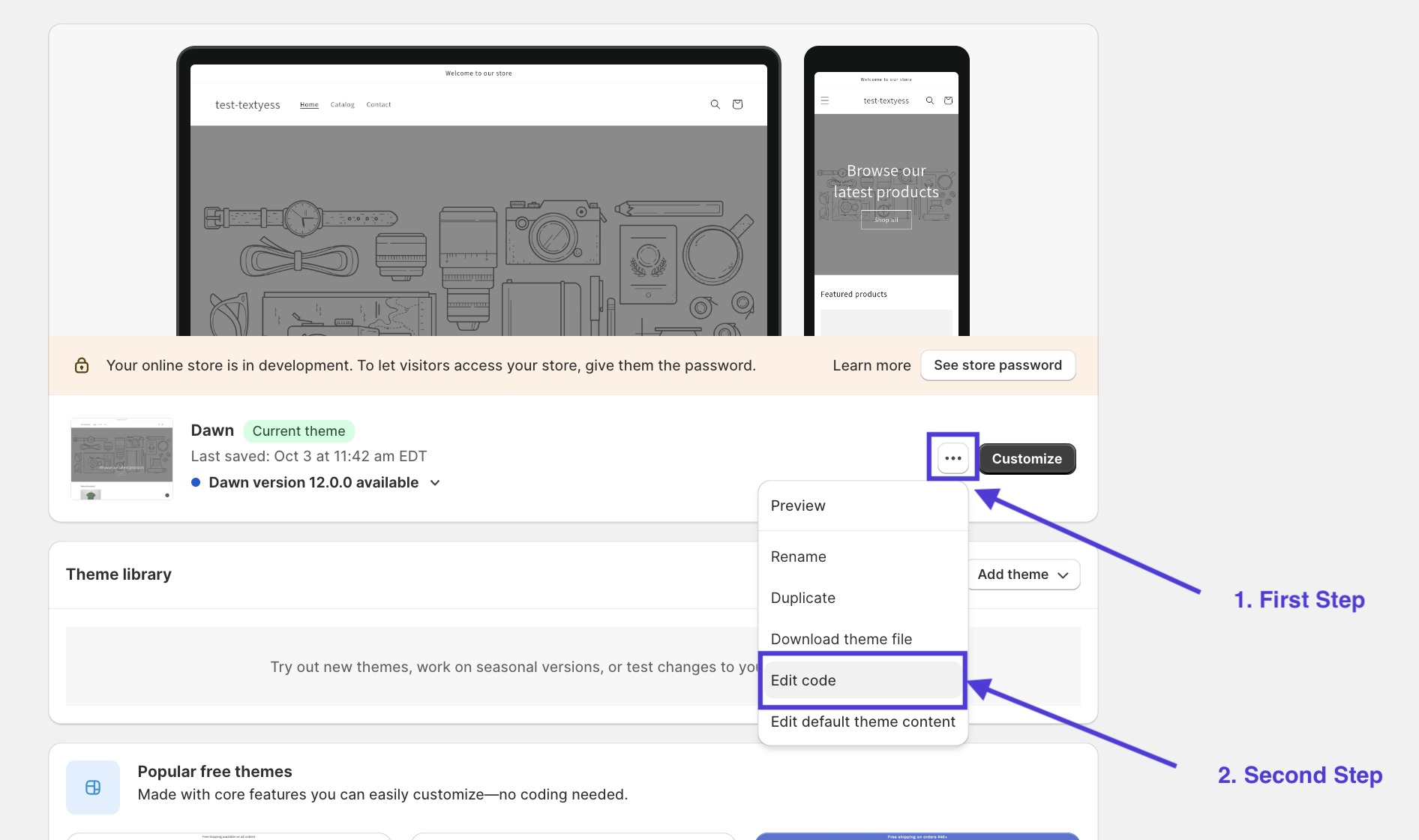
Open the Theme editor
Opening the theme editor is very simple. Just click on the three dots of the theme you want to update. Then click on “Edit code”.
5
Edit the file with call to actions on the product page
This may be the most complex part. In fact, each theme handles the product page and related CTAs differently. Here are some of the possible files where you will find the CTAs where to insert your widget:
We are almost finished!
Now click the “Save” button in the upper right corner, then click the “Preview store” button to make sure the widget is displayed correctly.
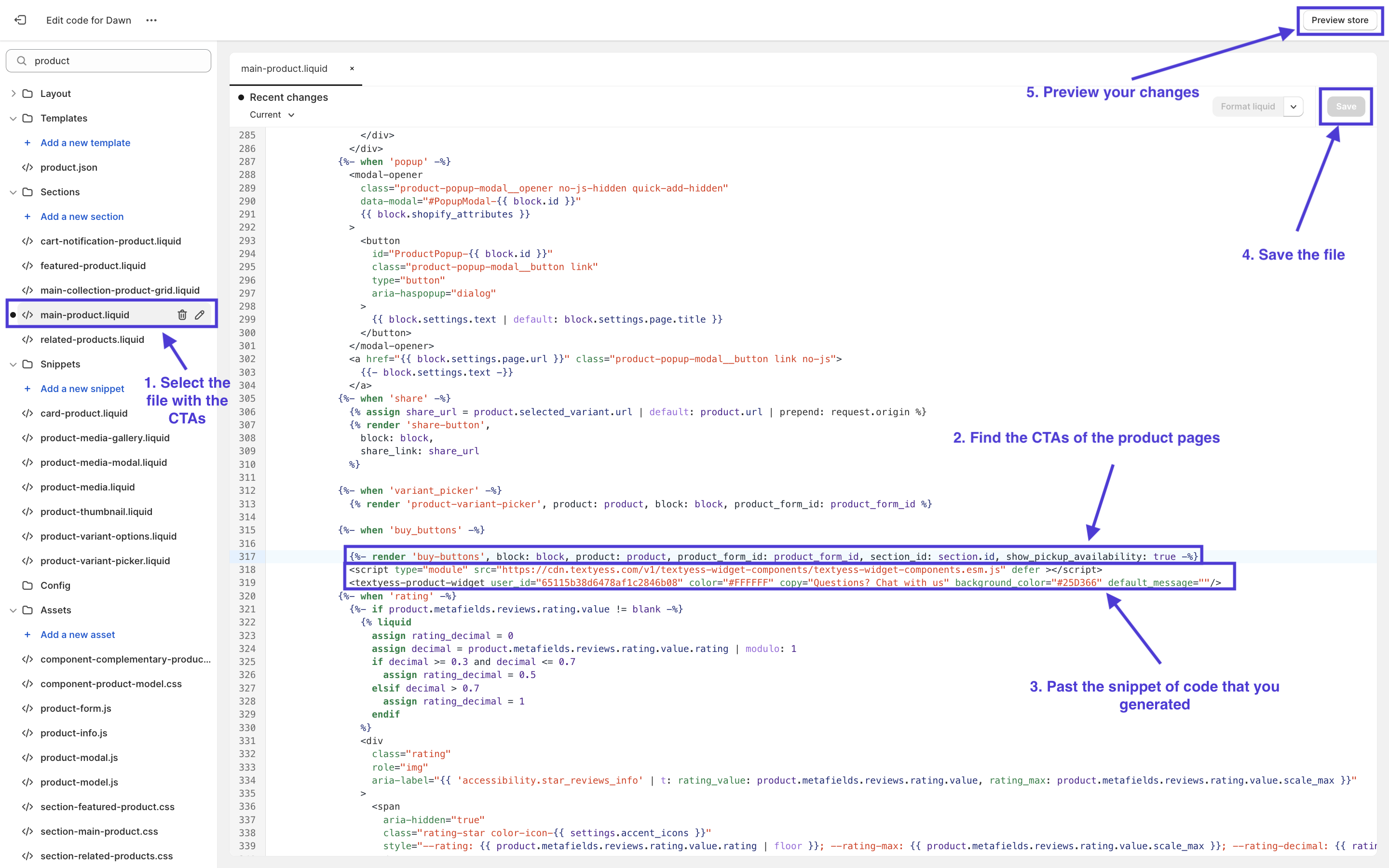
- main-product.liquid
- buy-buttons.liquid
We are almost finished!
Now click the “Save” button in the upper right corner, then click the “Preview store” button to make sure the widget is displayed correctly.
Congratulations, we are live! 🥳