

Looking for the Onsite Chat Widget instead? Check out the Onsite Widget installation guide.
1
Customize your widget appearance
Click on the “Growth tool kit” section of the menu. From there select the Chat Bubble integration block and personalize your widget.
2
Get the code snippet
From there you will find the code snippet to insert into your Shopify theme.
The code will look something like this:
The code will look something like this:
3
Go to the Online store section
Once inside your store click on “Sales channels” from the menu on the right.
A pop-up will appear at the top. From there click on “Online store”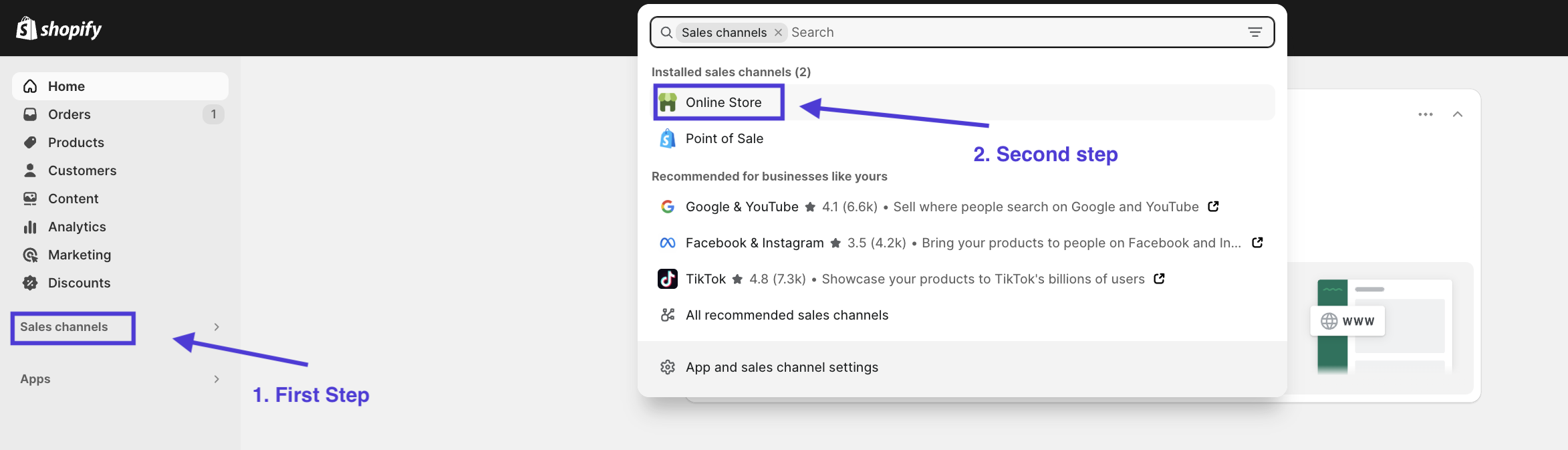
A pop-up will appear at the top. From there click on “Online store”
4
Open the Theme editor
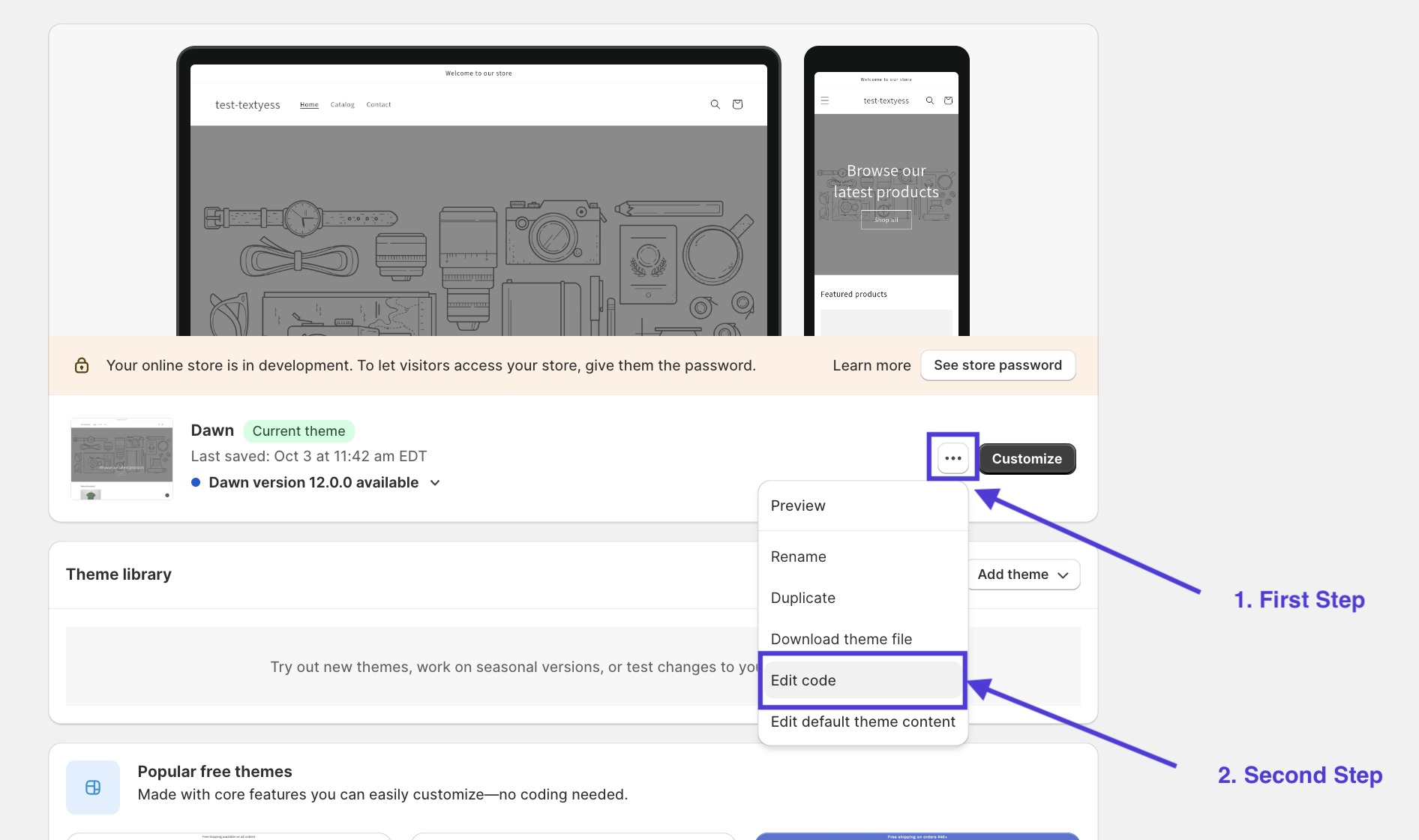
Opening the theme editor is very simple. Just click on the three dots of the theme you want to update. Then click on “Edit code”.
5
Edit the theme.liquid file
This might seem the scariest part for those without technical skills, but it is actually a very simple operation.
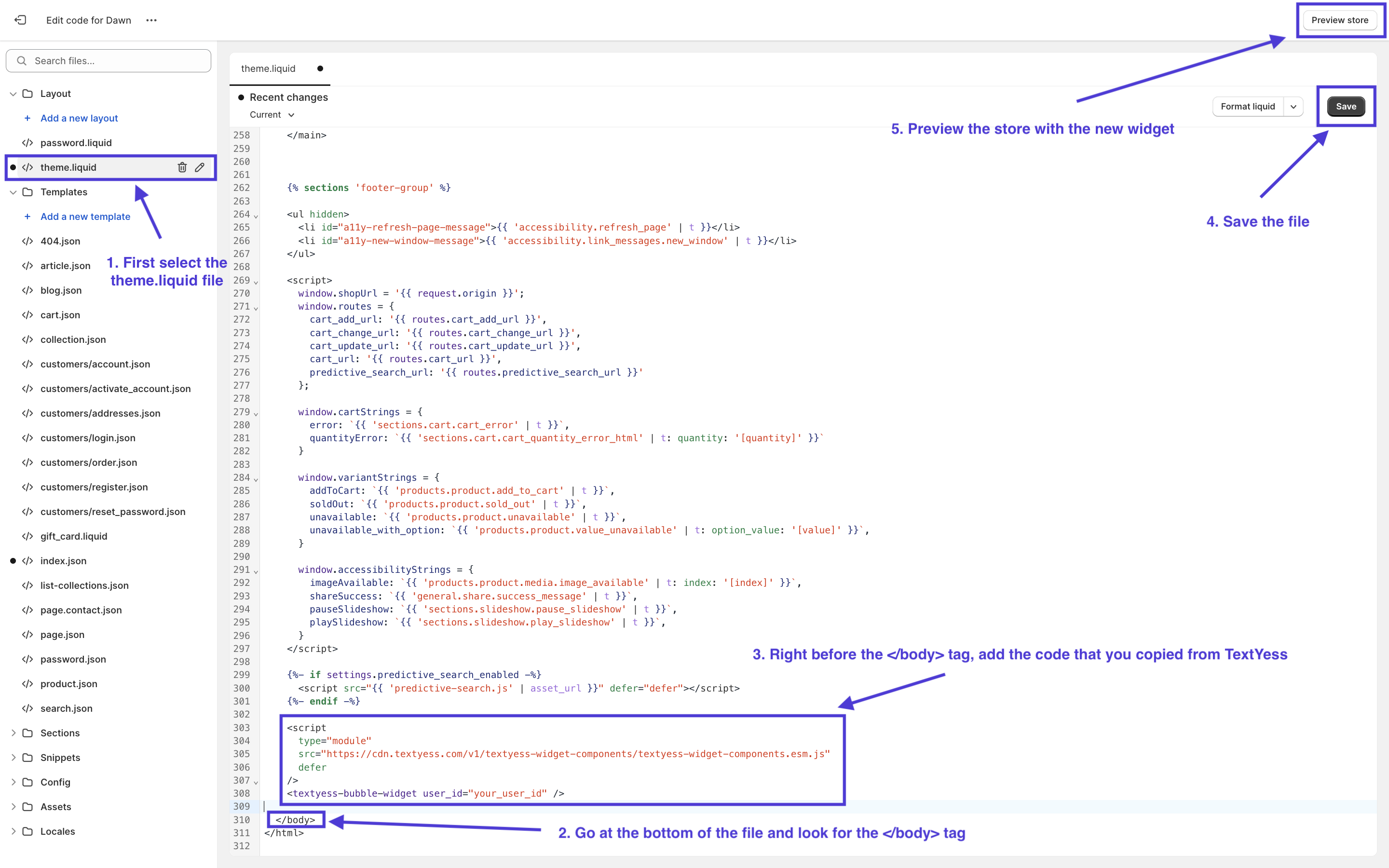
As a first thing you will notice that on the left side you have a bunch of files. Look for one called theme.liquid and click on it.
On the right, a file with codes will have opened for you. Don’t worry, you don’t need to know what it says. What you need to do now is scroll to the end of the file and look for the
On the right, a file with codes will have opened for you. Don’t worry, you don’t need to know what it says. What you need to do now is scroll to the end of the file and look for the
Once you find the tag, paste the code snippet you generated from TextYess (see step “Get the code snippet”) right before the the
Your code should look something like this.
We are almost finished!
Now click the “Save” button in the upper right corner, then click the “Preview store” button to make sure the widget is displayed correctly.
As a first thing you will notice that on the left side you have a bunch of files. Look for one called theme.liquid and click on it.
On the right, a file with codes will have opened for you. Don’t worry, you don’t need to know what it says. What you need to do now is scroll to the end of the file and look for the
</body> tag On the right, a file with codes will have opened for you. Don’t worry, you don’t need to know what it says. What you need to do now is scroll to the end of the file and look for the
</body> tag Once you find the tag, paste the code snippet you generated from TextYess (see step “Get the code snippet”) right before the the
</body> tag. Remember that if necessary you can create new lines by pressing the enter key in order to put space between the TextYess’s code snippet and the </body> tag. Your code should look something like this.
Now click the “Save” button in the upper right corner, then click the “Preview store” button to make sure the widget is displayed correctly.
Congratulations, we are live! 🥳