

Two ways to install
Install from the theme editor
This method changes no theme code. It needs an Online Store 2.0 theme.1
Open the theme editor from TextYess
In TextYess, click “Growth Tool Kit” in the menu. On the “Back-in-stock button” card, click “Set up the button”. In the “Install” card, click “Open Shopify Theme Editor”.Shopify opens your product template. The “TextYess Back in Stock” block is already in the main section. It is not saved yet.
2
Move the block under Add to cart
Drag the block under the “Add to cart” button. Click “Save”.
3
Set the two block options
You can switch off the “Ask on WhatsApp” button. You can also write your own consent line. Both settings are on the right, under the block name.
4
Check a sold-out product
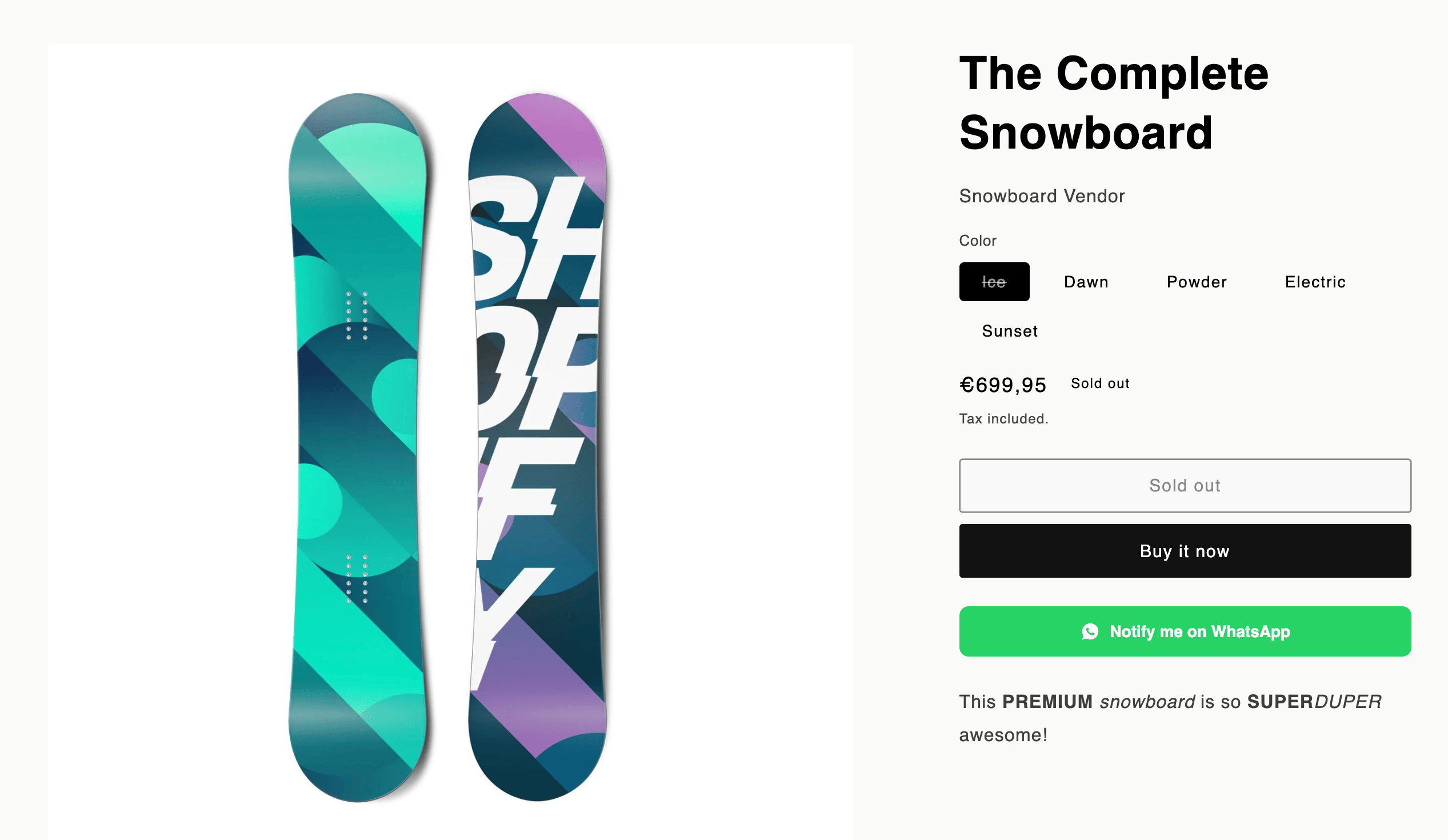
In the editor, open a product that has a sold-out variant. The button shows under “Add to cart”. On a variant that is in stock, only a grey note stays. Shoppers never see that note.
The block takes its colors, corner radius, button shape and text size from “Widget brand style” in the Growth Tool Kit. It does not use the colors and the texts in the back-in-stock configurator: those belong to the code snippet. The block writes the button texts in the shopper’s own language.
Install with the code snippet
Use this method when your theme is older, or when you want the button somewhere the block cannot go. The block goes on the product template only. Make a backup of your theme before you edit it.1
Set the texts and the colors
In TextYess, click “Growth Tool Kit” in the menu. On the “Back-in-stock button” card, click “Set up the button”. Change the button label, the colors and the consent line. The preview on the right uses a real product from your catalog.
2
Copy the snippet
In the “Install” card, under “Install with code”, click “Copy snippet”. The snippet carries your store id, your texts and your colors.
3
Open the theme code
In Shopify, open “Online Store”, then “Themes”. Click the three dots on your theme, then “Edit code”.
4
Paste the snippet under the Add to cart button
Open the file that renders the buy buttons on the product page. Common names are
main-product.liquid and buy-buttons.liquid. Paste the snippet after the “Add to cart” button, then click “Save”.5
Check a sold-out product
Open a product that has a sold-out variant. The button shows under the disabled “Add to cart” button. On a variant that is in stock, the button does not show.
If you installed the snippet before September 2026, copy it again. The older snippet does not follow the variant the shopper selects.