

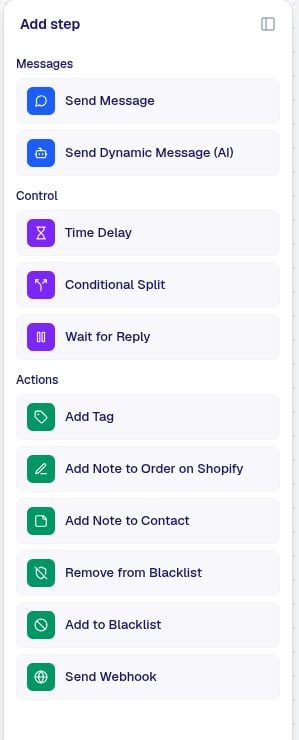
Action steps
They have side effects — send a message, tag a contact, call a webhook. If they fail, they retry. If retries are exhausted, they take an optional error path.
Control steps
They shape the flow — delay, branch, wait for a reply, look up history. No side effects, just routing.
At a glance
Action steps
Send Message
Send Message
Sends a WhatsApp message using a template. This is the workhorse of the platform.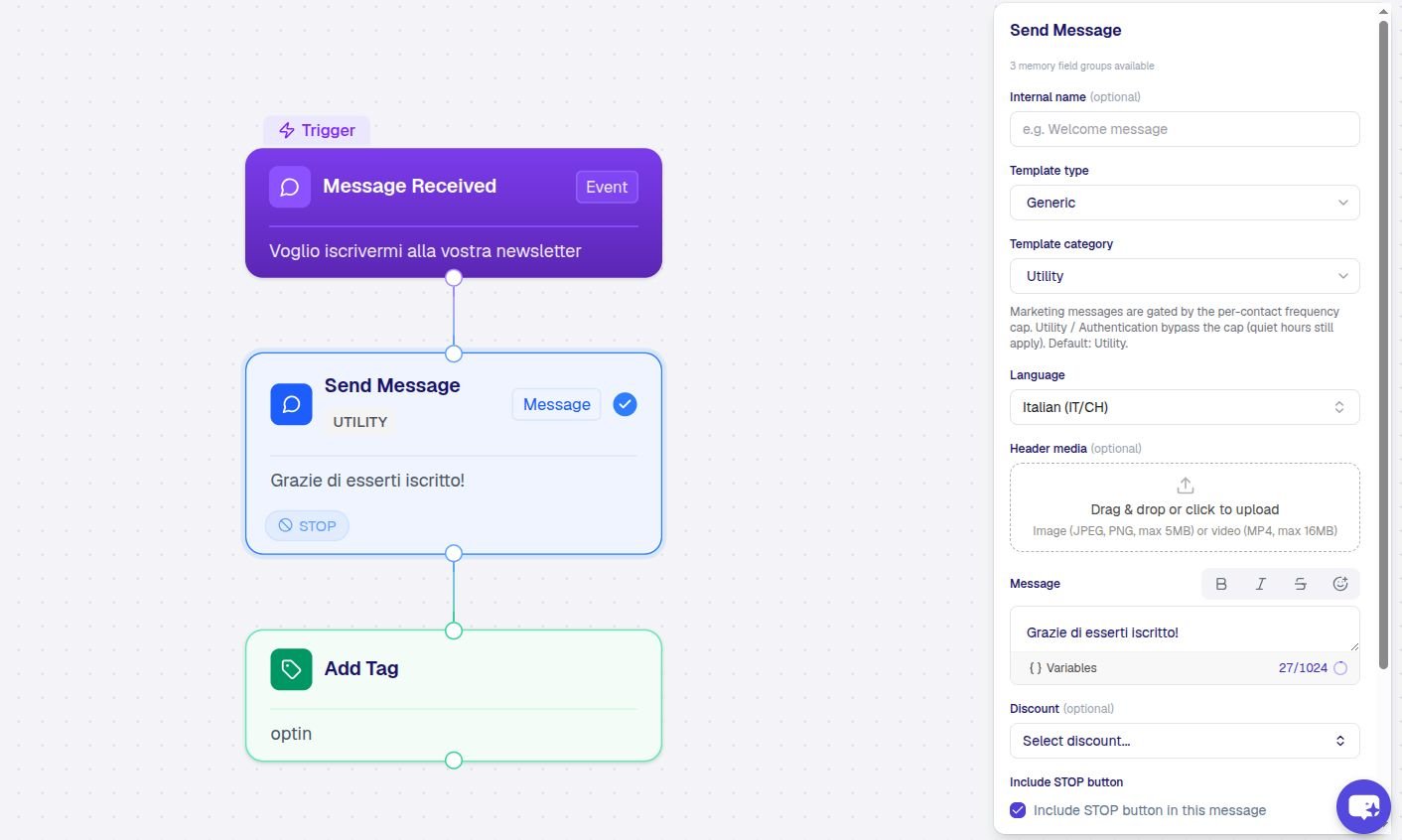
- Template — pick a previously-approved template or create a new one inline (it will go through Meta approval at publish time).
- Template category —
UTILITYorMARKETING. This drives both Meta’s review and the frequency cap (see Frequency cap). New send steps default to UTILITY in the UI. - Language — the template language (must match the contact’s country).
- Variables — values for any
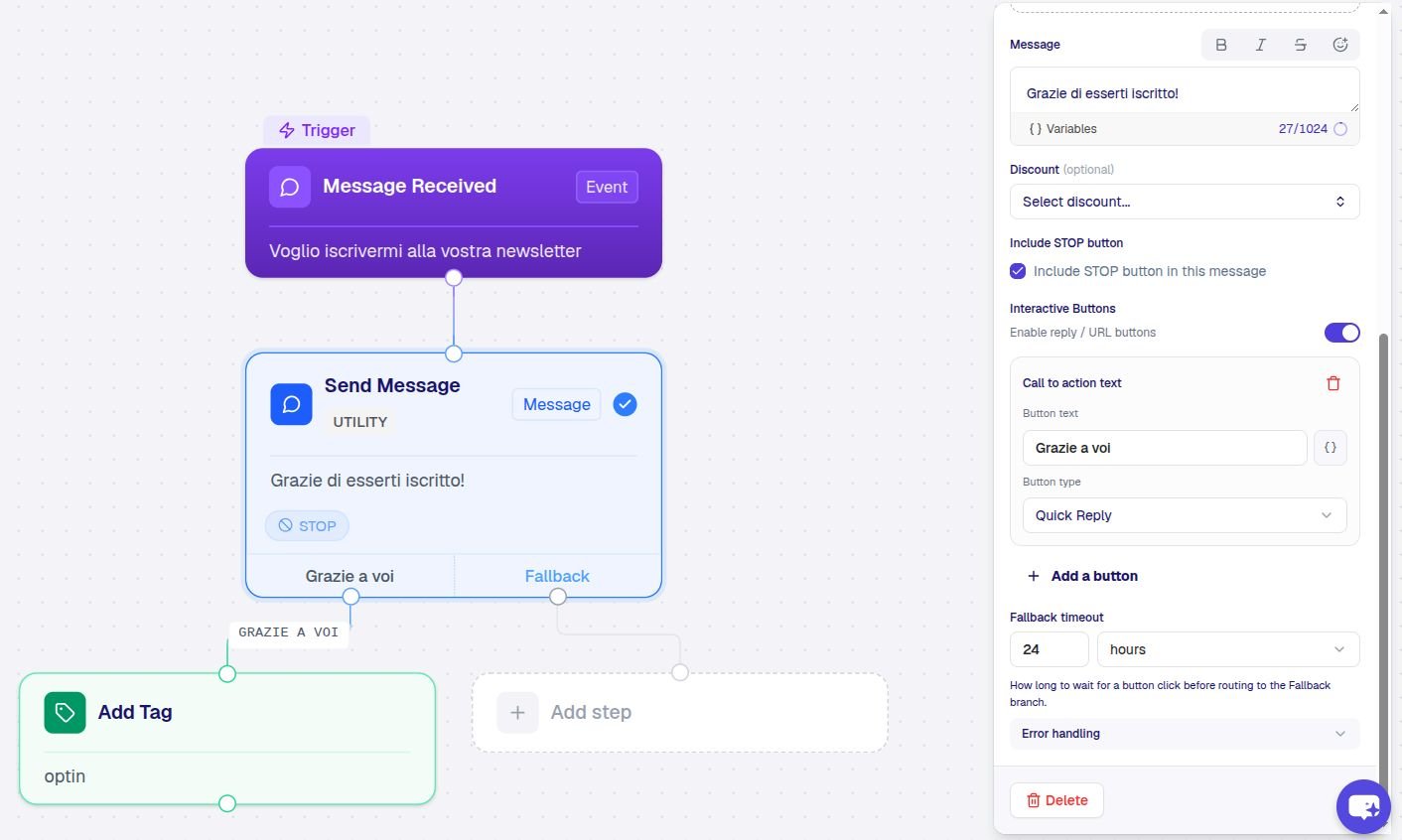
{{1}},{{2}}placeholders in your template. Each can be a literal, a memory reference (e.g.order.customer.firstName), or a computed expression. - Buttons (optional) — quick reply buttons. When configured, the step automatically waits for the contact’s reply and branches by button label. Add a timeout and a timeout branch as you would for a wait.
- Media header (optional) — image, video, or document. Drop a URL or pick a stored asset.
- Discount (optional) — let TextYess reserve a unique discount code from a campaign you’ve set up.
- Stop button (optional) — append a localised opt-out button so contacts can leave with a tap.
- Shape 1 — no buttons. Sends and moves to the next step immediately. Pair with the Wait for Reply control step if you want to wait for a text answer.
- Shape 2 — with quick-reply buttons. Sends, waits for the contact, and branches by button. Each button is an output handle on the canvas, plus a
timeoutbranch. Do not pair with Wait for Reply — Shape 2 already includes the wait.
Send Dynamic Message (AI)
Send Dynamic Message (AI)
Generates the message body at runtime using the brain0 AI engine, then sends it on a pre-approved dynamic template.Use this when you want personalised copy on every send instead of the same template body for everyone — and you don’t want to manage one Meta-approved template per variation.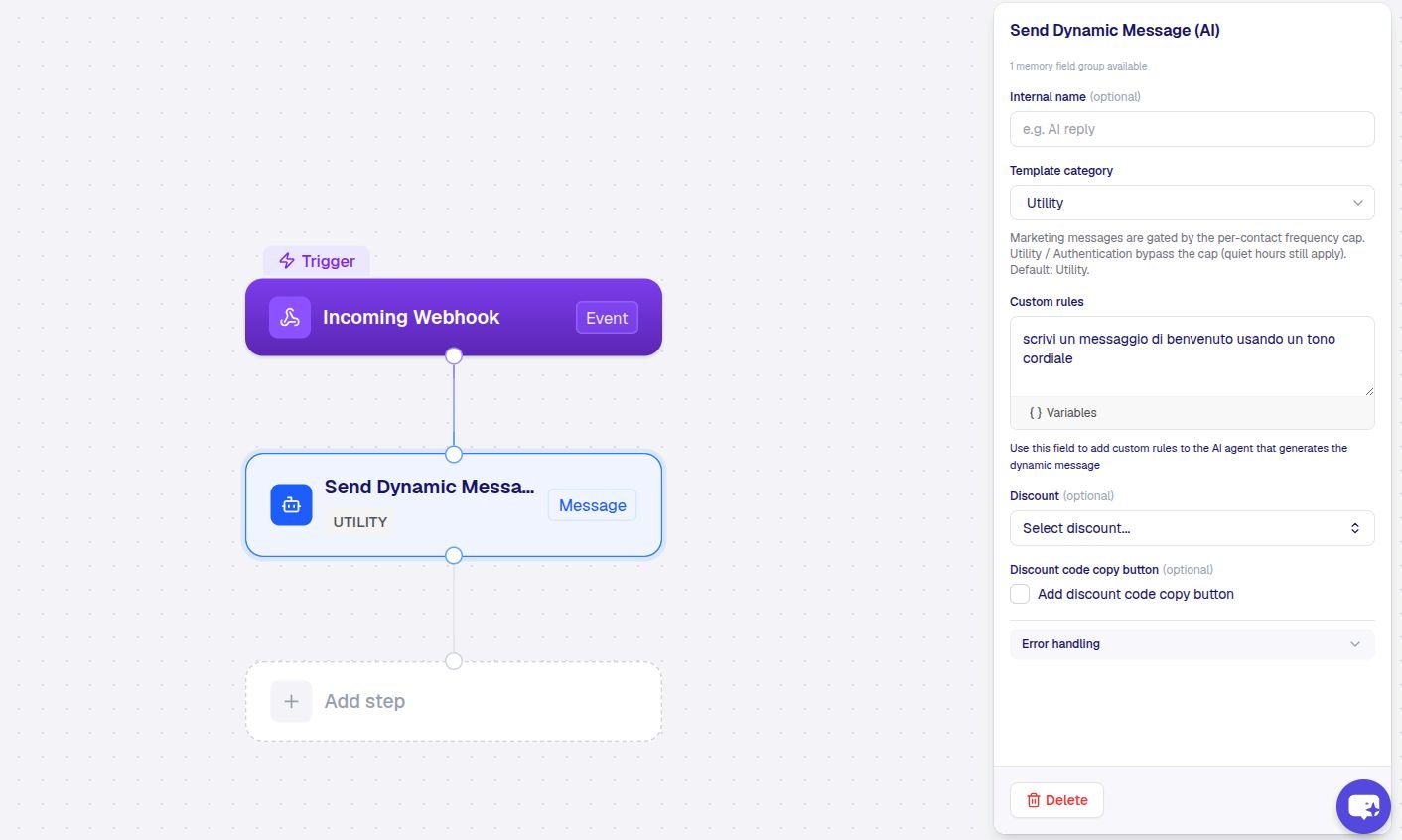
- Template category — same two options as Send Message (
UTILITYorMARKETING); defaults to UTILITY. - Prompt — natural-language instructions for the AI (e.g. “Greet the customer by name and recommend our newest collection in a warm, conversational tone”).
- Custom rules (optional) — extra constraints (max length, must include a specific phrase, etc.).
- Language — the template language.
- Discount + copy-code button (optional) — same as Send Message. The copy-code source can be a reserved discount code or a static value.
The dynamic template itself is submitted to Meta for approval the first time you publish a flow that uses one. The category you pick is the submission intent; Meta’s final decision is what gates the frequency cap.
Add Tag
Add Tag
Adds a tag to a contact or to an order. Tags drive segmentation in TextYess and (for Shopify orders) sync back to your store.What you configure:
- Entity —
contact(default) ororder. - Entity ID — leave empty to tag the current execution’s contact / triggering order. Override only for advanced use cases.
- Tag — the tag string (e.g.
vip,responded-to-welcome).
Add Note to Order on Shopify
Add Note to Order on Shopify
Appends a free-text note to the triggering Shopify order. Useful for flagging orders your support team should look at (“waited 24h for reply, no response”).What you configure:
- Note — the text to append. Supports variables.
- Order ID (optional) — defaults to the triggering order.
Add Note to Contact
Add Note to Contact
Appends a free-text note to the contact’s profile in TextYess. Visible in the conversation panel.What you configure:
- Note — the text to append. Supports variables.
Send Webhook
Send Webhook
Makes an outbound HTTP request to an external URL. Use to notify your CRM, Slack, Zapier, internal tooling, or any system that can accept HTTP.What you configure:
- URL — the destination. Can be built from variables (e.g.
concat("https://crm.example.com/leads/", contact.id)). - Method —
POST(default),GET,PUT,PATCH,DELETE. - Headers (optional) — JSON object of headers.
- Body (optional) — the request body. Usually JSON; supports variables.
Errors and retries: Send Webhook retries on 5xx and network errors with exponential backoff. Non-success responses (4xx) take the error path if you’ve connected one.
Remove from Blacklist
Remove from Blacklist
Removes the current contact from the marketing blacklist so they can receive future marketing messages again. Use after a contact explicitly opts back in.What you configure: Nothing — it operates on the current contact.
Control steps
Time Delay
Time Delay
Pauses the flow for a fixed duration, then moves on. Durable — survives restarts.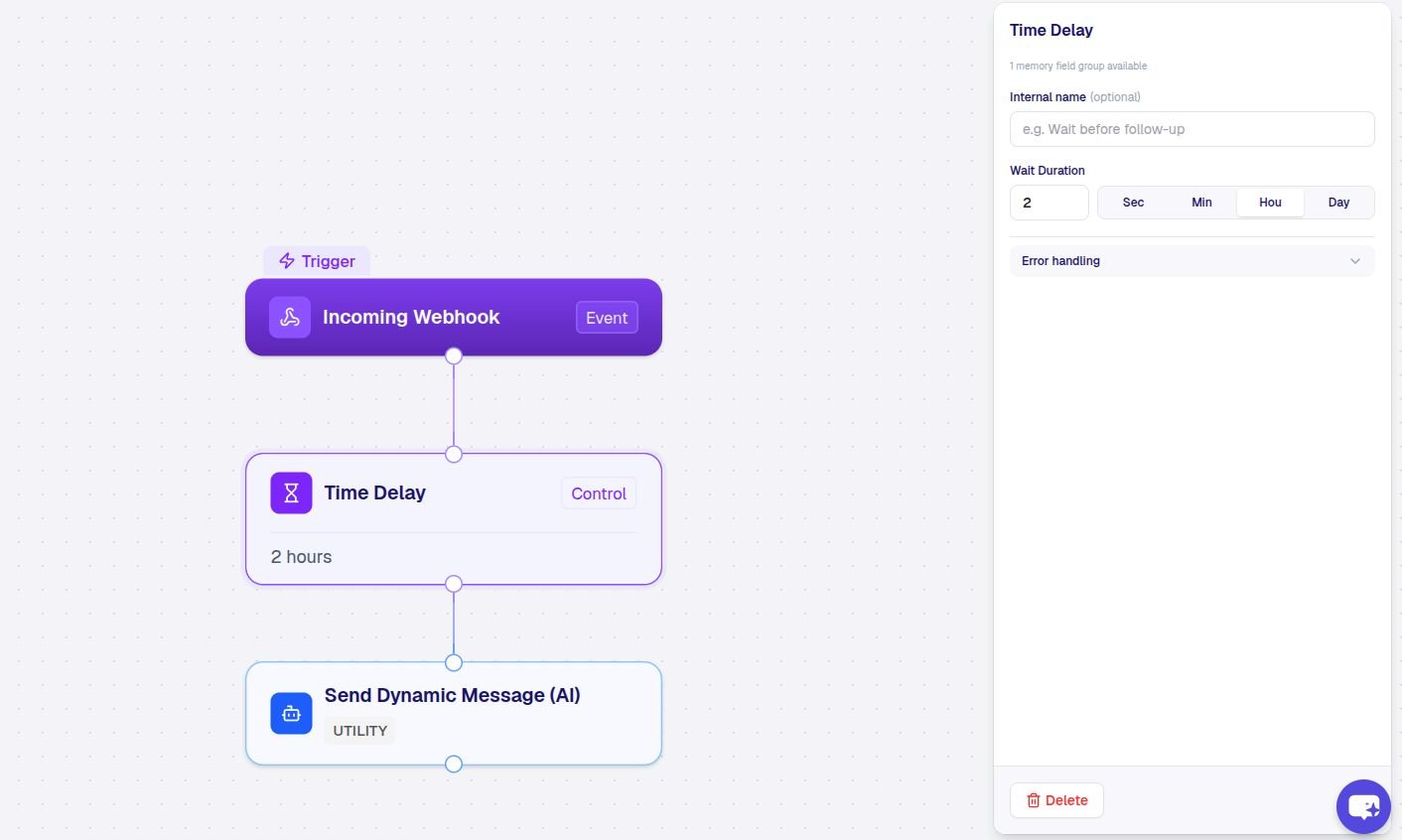
- Duration — a number.
- Unit — minutes, hours, days.
Conditional Split
Conditional Split
Branches the flow into a True path and a False path based on a condition.Conditions can be a preset (e.g. “has placed an order in the last 30 days”) or a custom expression (e.g. 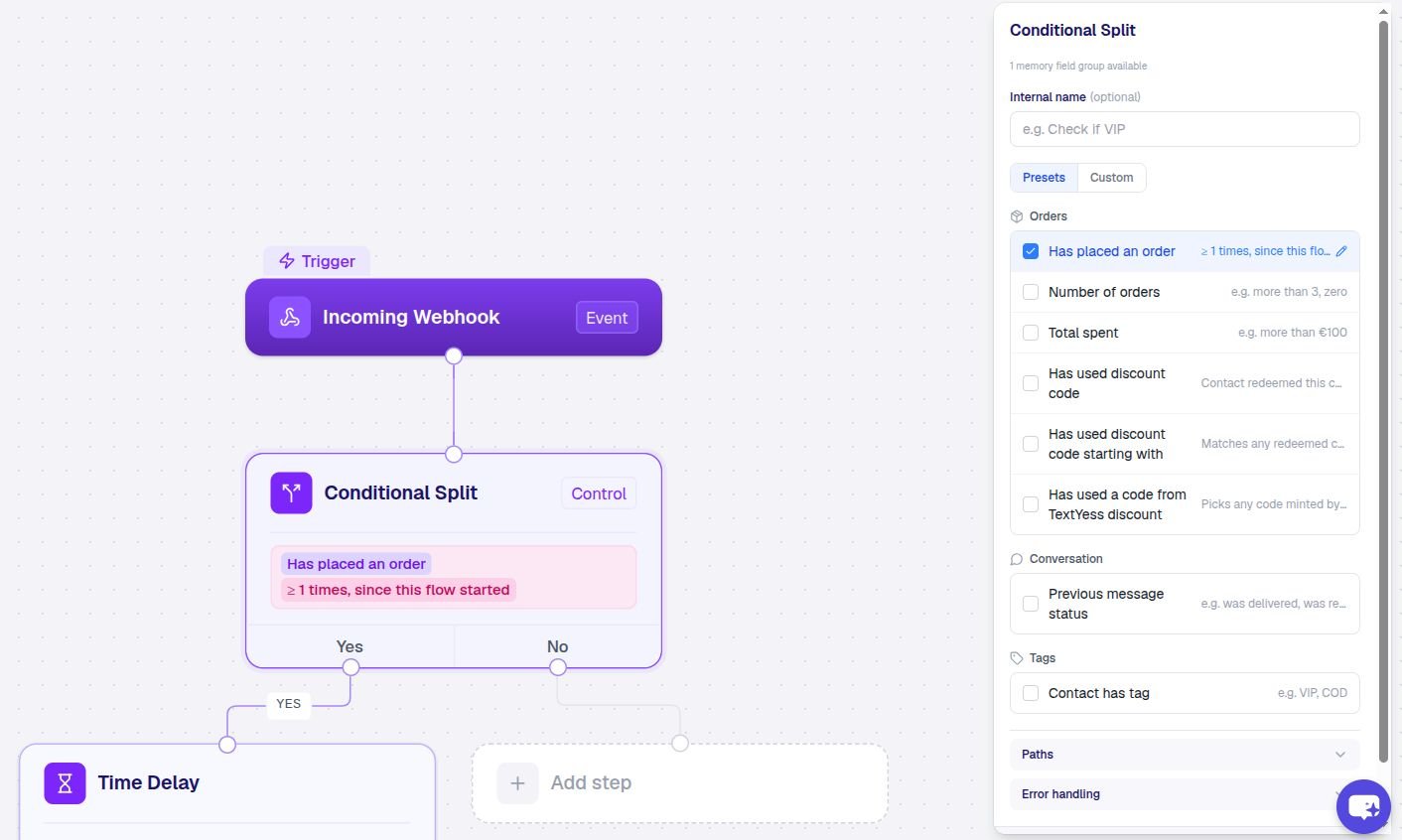
order.total > 100 and contact.tags contains "vip").Two output handles: true and false. Either can be unconnected — the unconnected side ends the flow.See Conditions for the full grammar.Wait for Reply
Wait for Reply
Suspends the flow until the contact sends a free-text reply, then branches 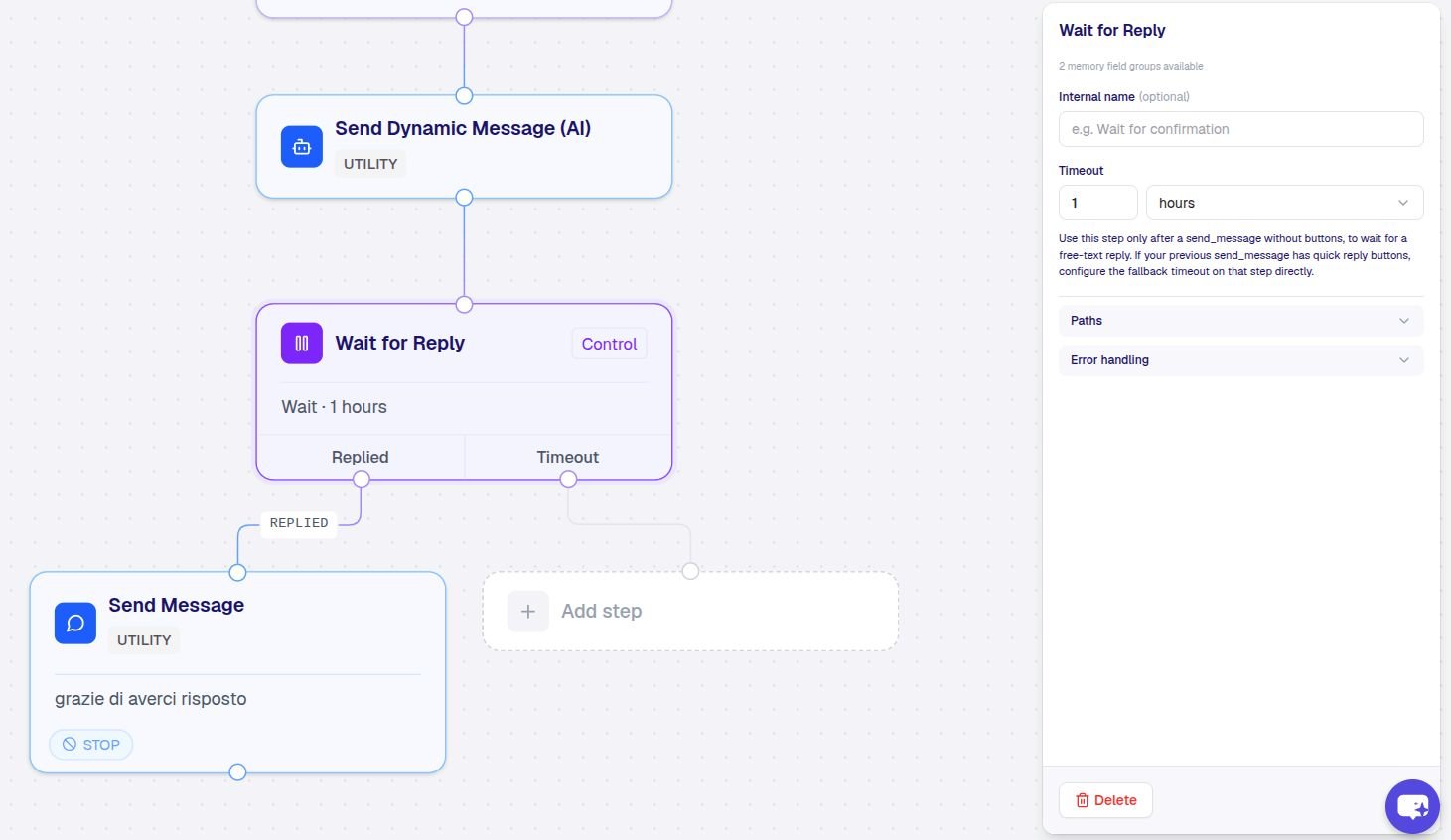
replied or timeout.- Timeout — e.g.
24 hours. If the contact doesn’t reply by then, the flow follows thetimeoutbranch.
No-Op (End)
No-Op (End)
Terminal — the flow ends here. You rarely need to drop one yourself; the editor inserts a No-Op automatically wherever a branch is left unconnected, so you can leave the “False” handle of a Conditional Split dangling and the flow will simply end on that path.
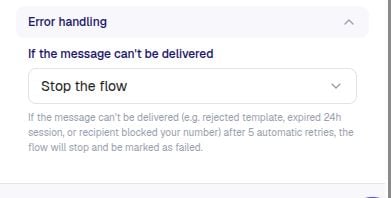
Error handling: the failure path
Every action step has an optional failure output (a red handle in the canvas). When the action exhausts its retries, the flow takes that path instead of failing the whole execution.failed.
Variables: how steps share data
Each step writes its result to a shared memory object under its own step id. Later steps can read from it. Example: a Send Message step with idwelcome_msg_1 whose contact tapped a quick-reply button writes { messageId: "wamid.xxx", reply: { type: "button", buttonId: "yes", text: "Yes please" } }. A downstream Send Message template can reference the reply text as:
The variable picker in the editor lists every readable field from the trigger and every previous step, so you almost never type these paths by hand.
Next: Conditions — how to express branching logic without writing code.