

Send Message
A traditional, fixed-body template. The structure is approved once by Meta; variables fill in customer-specific details at send time. Best when the wording is the same for everyone.
Send Dynamic Message (AI)
Uses a pre-approved dynamic template; the body is generated at runtime by AI from a prompt. Best when you want each customer to receive personalised copy without managing dozens of templates.
Template anatomy
A WhatsApp template has up to four parts. You configure each one in the editor; Meta approves the structure (not the values).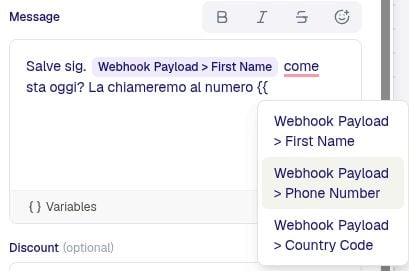
1
Header (optional)
A short title, an image, video, or a document. Headers can include up to one variable (e.g.
Order #{{1}}).2
Body (required)
Your message text. May contain variables (
{{1}}, {{2}}, …). Maximum 1024 characters.3
Footer (optional)
A short greyed-out line under the body (e.g. “Reply STOP to unsubscribe”). No variables.
4
Buttons (optional)
Up to three quick-reply or call-to-action buttons. Quick replies turn the Send Message step into a waiting step automatically.
Categories
Every template carries a category that determines (a) how Meta reviews it and (b) how strictly TextYess rate-limits it.
See Frequency cap for the exact rules.
Variables
Every text field in a template (header, body, button label) can contain variables. The editor exposes a variable picker; you don’t need to remember dot-paths.
If a referenced variable is missing at send time, the template falls back to an empty string for that position rather than failing the send. This means a template that references
{{1}} = order.gift_message will still send when the order has no gift message — that variable will simply render empty.
Quick-reply buttons
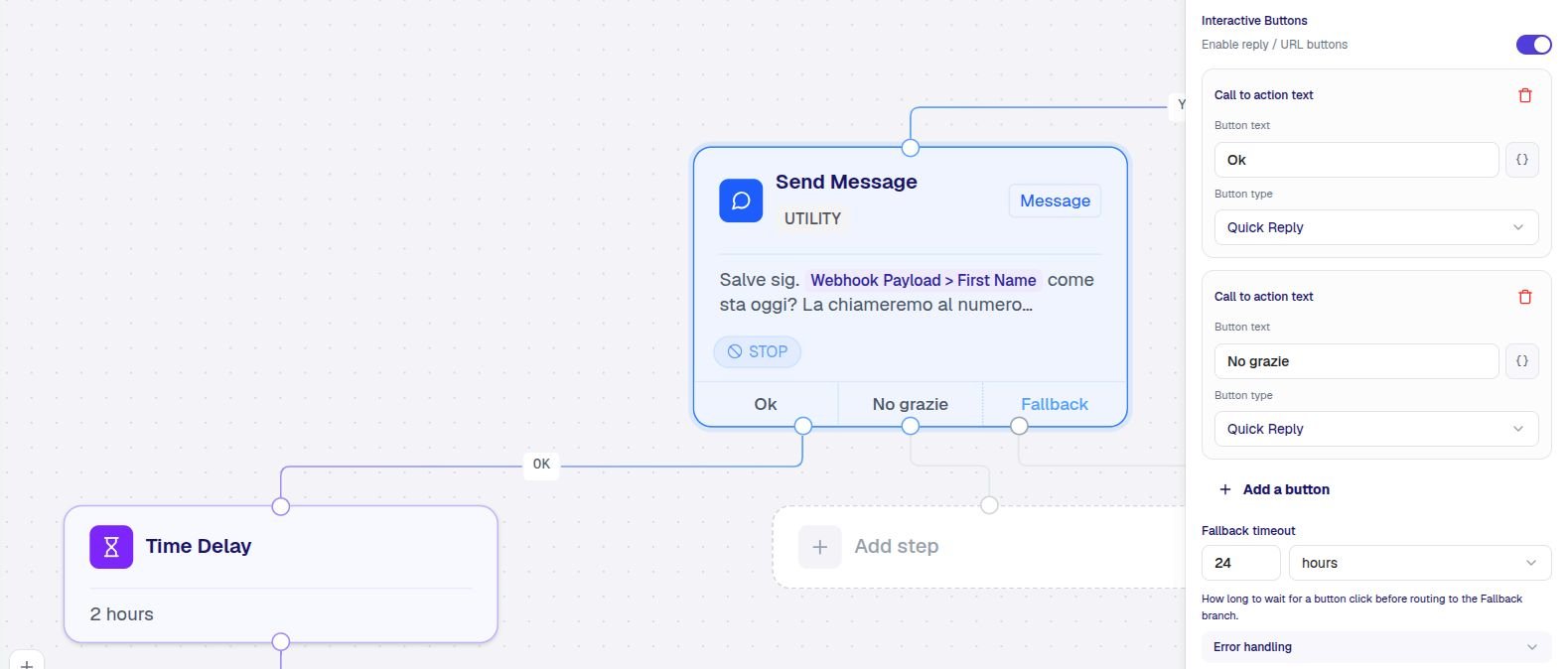
Quick-reply buttons turn a Send Message into an interactive checkpoint. The contact taps a button and the flow branches.- Each button label becomes an output handle on the canvas.
- An implicit
timeoutbranch appears so you can decide what happens if the contact doesn’t reply. - The Wait for Reply step (see Steps) is not needed (and not allowed) after a Send Message with buttons — the wait is built in.
buttonId (lowercase, hyphen-separated label) is written to memory[stepId].reply.buttonId. Use it in expressions if you need to distinguish between buttons that look similar to a human (“Yes please” / “Yes, but later”).
Call-to-action buttons
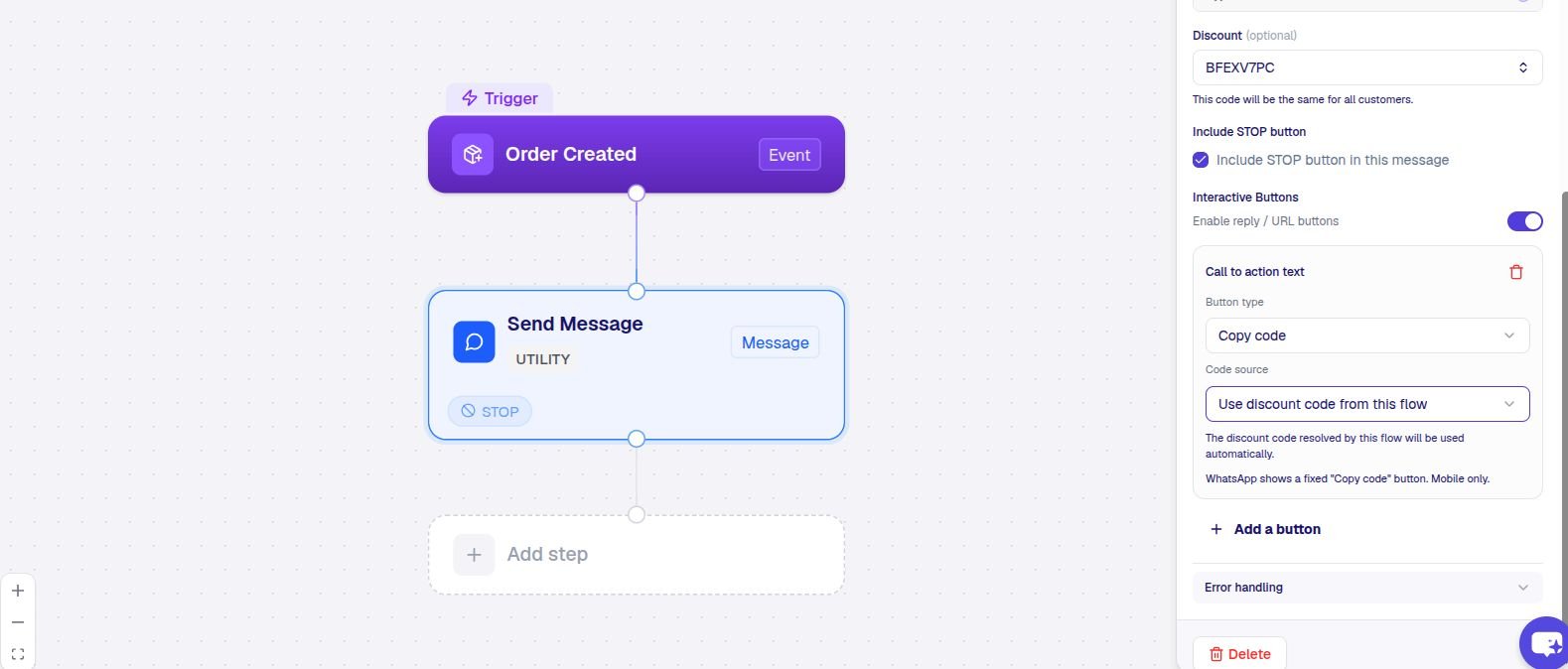
Two other button types are static — they don’t wait for a reply, they just give the contact something to tap.
Copy-code buttons are how you ship a unique discount code per send:
<stepId>.discount if you want to reference it in later steps (e.g. logging it to your CRM).
Media headers
Send Message and Send Dynamic Message both support a media header — an image, video, or document.- Image
- Video
- Document
JPG or PNG. Max 5 MB. Hosted by TextYess once you upload it, or a public URL you provide.
Send Dynamic Message (AI)
The AI variant generates the message body at runtime instead of using a fixed template body. You write a prompt describing what the AI should say; TextYess feeds it the customer’s context (trigger memory, profile, conversation history) and generates the body. When to use it:- You want the wording to vary per customer (style, language, references to past purchases) without managing dozens of templates.
- You want the AI to incorporate live data — order totals, viewed products, the customer’s name — into natural-sounding copy.
- You want the assistant’s voice to stay consistent with the rest of the customer’s conversation.
- Legal / regulated copy that must be word-for-word identical.
- Highest-volume marketing sends — fixed templates are cheaper and faster.
Configuring the prompt
A good prompt is concrete about goal, tone, and required content. The AI receives the contact’s name, the trigger data, and (optionally) recent messages as context.Custom rules
Custom rules let you constrain the AI without rewriting the whole prompt. Use them for compliance (“never claim a product is in stock”), tone (“never use the word amazing”), or formatting (“always end with the contact’s first name”).Memory written
Best practices
One purpose per template
Don’t try to make a single template do confirmation, cross-sell, and review-request. Split them; the analytics and frequency cap both reason about templates individually.
Default to UTILITY
If you’re not running a marketing campaign, your message is UTILITY. The default in the editor is correct — leave it.
Use the variable picker
Hand-typing
order.customer.firstName is how typos and missing values sneak in. Use the picker; it shows what’s actually available for your trigger.Include a Stop button on marketing
Toggle the Stop button option on marketing sends. Contacts who tap it are auto-tagged and removed from future marketing — keeping your unsubscribe rate low (and Meta happy).