

- When should the flow run? — e.g. “every time a new order is placed”.
- For which contact should it run? — derived from the event payload (an order’s customer, a checkout’s email, the contact who messaged you).
- What data is available to later steps? — the event payload is mapped into a starting memory object you can reference everywhere.
The trigger catalogue
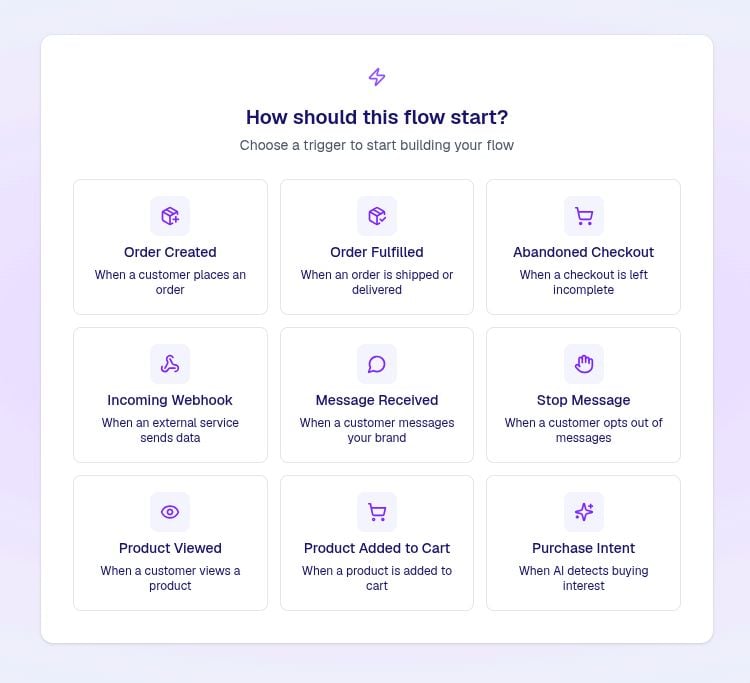
New Order
A new order is created in Shopify or WooCommerce. Best for confirmation, cross-sell, post-purchase follow-up.
Fulfilled Order
An order’s fulfilment status changes to fulfilled. Best for shipping notifications and review requests.
Abandoned Checkout
A checkout is started but not completed within the abandonment window. The bread-and-butter recovery trigger.
Product Added to Cart
A product is added to the cart from the storefront. Use sparingly — this fires often.
Product Viewed
A contact views a product page. Useful for browse-abandonment journeys.
Purchase Intent
The AI assistant detects strong purchase intent in a conversation. Great for nudging undecided buyers with a code.
New Message
Any inbound WhatsApp message — optionally filtered by keyword. The hook for keyword campaigns and automations.
Stop Message
A contact sends an opt-out keyword (e.g. STOP, UNSUBSCRIBE). Use to confirm the opt-out and tag the contact.
Webhook (Generic)
A POST request to a per-flow URL. Use to trigger flows from your own backend, Zapier, or any system not in the list above.
Triggers in detail
New Order
New Order
Fires: Immediately after a new order is created in your connected store.Memory available:
Customer resolution: TextYess uses the order’s customer phone number (or the shipping/billing phone as a fallback). If the order has no phone, the flow cannot run and no execution is created.Typical use: Order confirmation, cross-sell, NPS, review request after a delay.
Fulfilled Order
Fulfilled Order
Fires: When an order moves to
fulfilled status in your connected store (e.g. tracking number assigned, shipped).Memory available:Typical use: Shipping notification, review request, delivery follow-up.
Abandoned Checkout
Abandoned Checkout
Fires: When a checkout is started but not completed within your store’s abandonment window. The trigger does not fire if the customer eventually completes the same checkout.Memory available:
Customer resolution: The checkout’s phone (or customer/shipping/billing phone if present). Checkouts without a phone do not start a flow.Typical use: The classic 2-or-3 step abandoned-cart recovery sequence — wait, check the customer hasn’t completed the cart in another tab, then nudge with a return-to-cart link.
Product Added to Cart
Product Added to Cart
Fires: Every time the on-site widget records a “product added to cart” event for an identified contact.Memory available:
Product Viewed
Product Viewed
Fires: When the on-site widget records a product-page view for an identified contact.Memory available:
Typical use: Browse-abandonment journey — wait 30 minutes, then send a single nudge gated by a Conditional Split that bails out if the customer already bought.
Purchase Intent
Purchase Intent
Fires: The AI assistant has determined the contact has strong purchase intent for a specific product during a WhatsApp conversation.Memory available:
Typical use: Send a personalised discount or restock alert from the merchant’s voice instead of the AI’s, to convert undecided buyers.
New Message
New Message
Fires: Any inbound WhatsApp message from a contact. Optionally restricted to messages that match a filter (keyword or pattern).Memory available: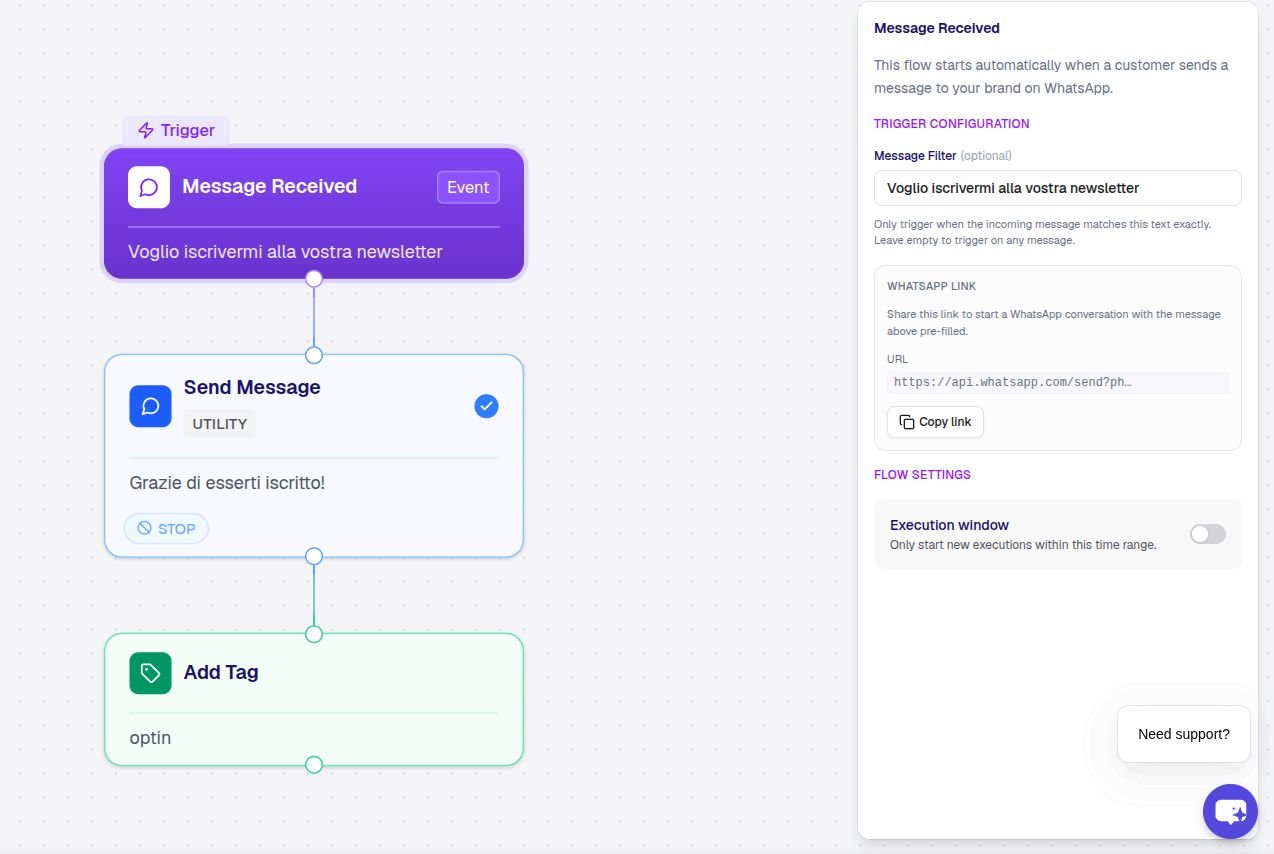
Filter examples:
START— only fire when the message body isSTART(case-insensitive)welcome— only fire when the message containswelcome
SALE → coupon), opt-in confirmation flows, support routing.Stop Message
Stop Message
Fires: When TextYess detects an opt-out keyword in an inbound message (STOP, UNSUBSCRIBE, and configured equivalents). This is the trigger that fires when a contact wants to leave.Memory available: Same as New Message.Typical use: Send a “you’ve been unsubscribed” confirmation, tag the contact with
opted-out, optionally notify your team.Webhook (Generic)
Webhook (Generic)
Fires: When a POST request hits the flow’s webhook URL with a valid payload.Memory available: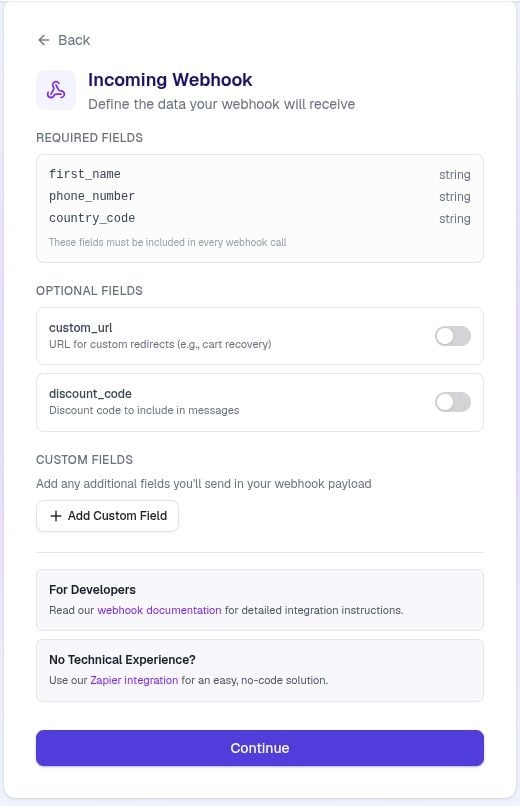
Customer resolution: The webhook payload must contain at least a
phone_number (E.164 format) and ideally a first_name. See the Webhook for flows reference for the full contract.Typical use: Trigger a flow from your own backend or an integration we don’t ship natively — for example, a CRM tag, a finished video render, or a custom scheduling tool.Choosing the right trigger
I want to react to a purchase event
Use New Order for confirmation, Fulfilled Order for shipping, Abandoned Checkout for recovery.
I want to react to browsing behaviour
Use Product Viewed for browse-abandonment, Product Added to Cart only if you can tolerate frequent firings.
I want to react to what a contact says
Use New Message with a filter for keyword campaigns, Stop Message for opt-out confirmation, Purchase Intent for AI-detected interest.
I want to trigger from my own system
Use Webhook (Generic). Generate the URL when you publish.